

Upload files to Nextcloud via the Drag-and-drop in Microsoft Teams
Sendent supports the drag-and-drop feature within Microsoft Teams. This allows end-users to conveniently drag files into their Microsoft Teams window and upload them directly to Nextcloud. This guide will walk you through how to use this feature in your organization’s Teams chats.
Note: The drag-and-drop feature must be configured for the Sendent for Teams app. If you are administrator, refer to this article for a step by step guide on how to enable the feature.
Note: The drag-and-drop feature only works on Desktop environments, and not on mobile devices.
Tip: You can also upload files to Nextcloud using the plus (+) button in your Teams chat. See this article for more details.
Guide
To get started, access the chat with the person you want to share files with on Teams.
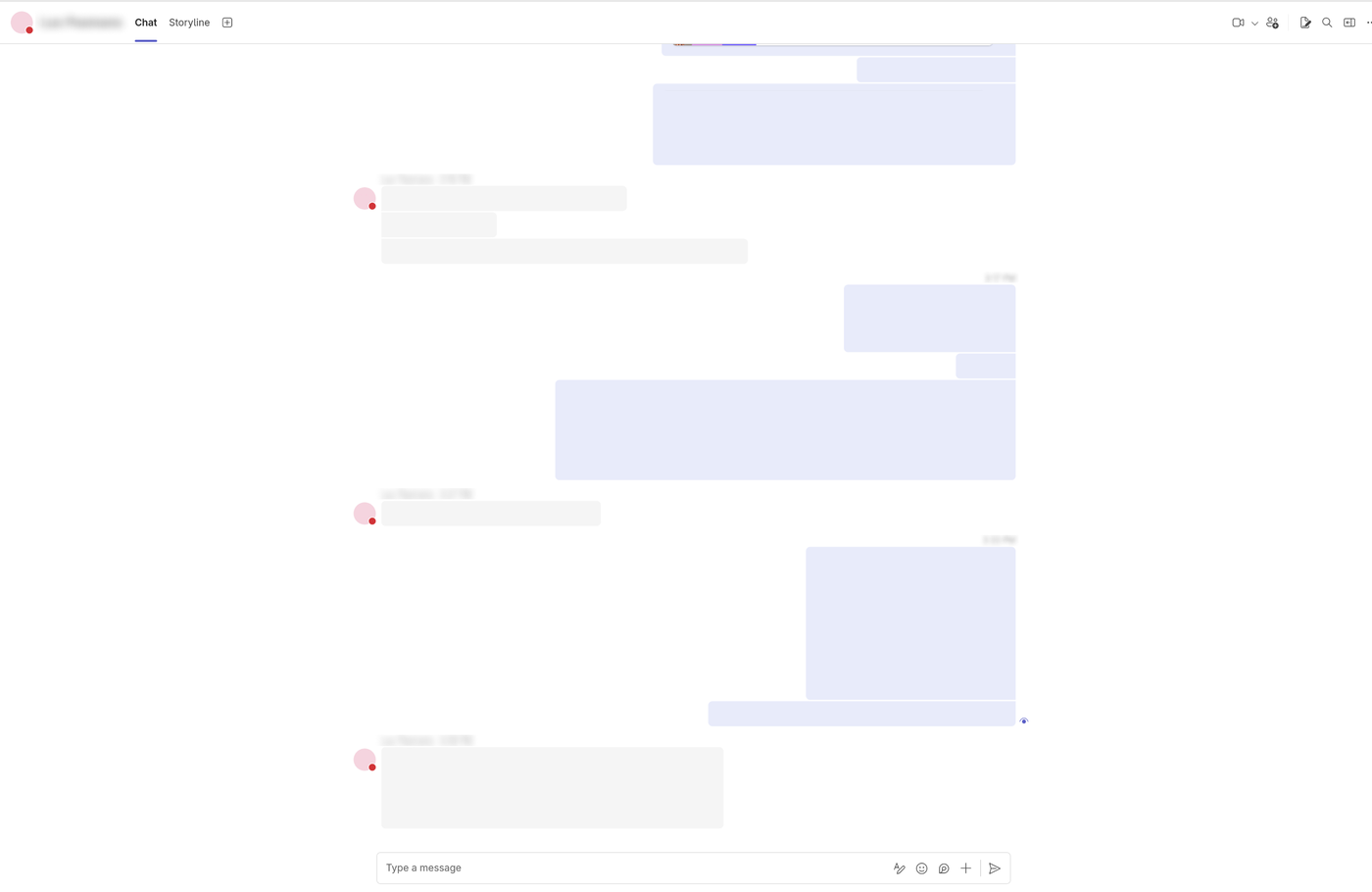
Locate the file you want to share on your computer (in File Explorer, on your desktop, or in another folder).
Click on the file and drag it into the Teams chat window.
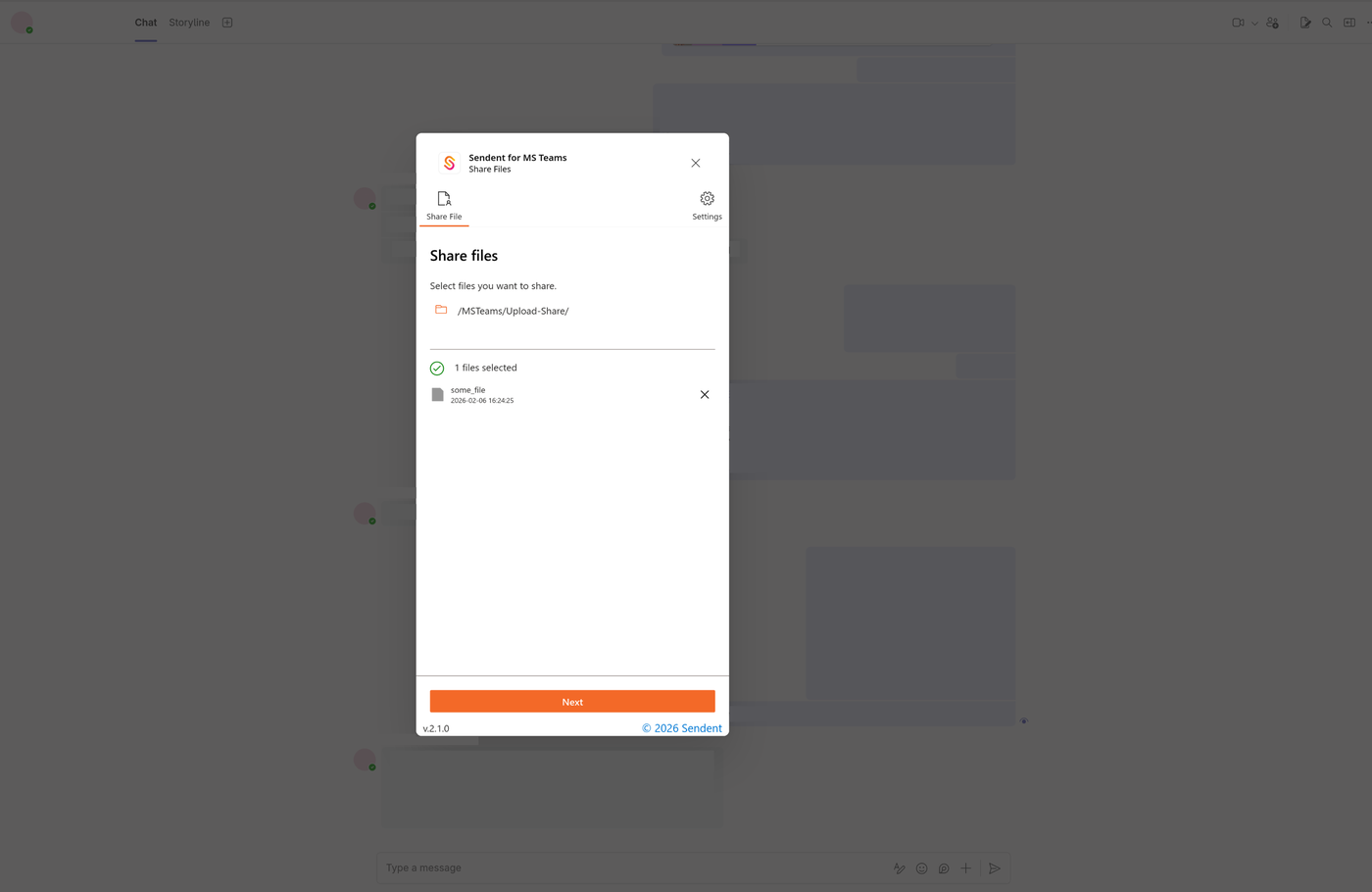
When you release the file, a Sendent popup will appear with an overview of your selected file and the destination directory:
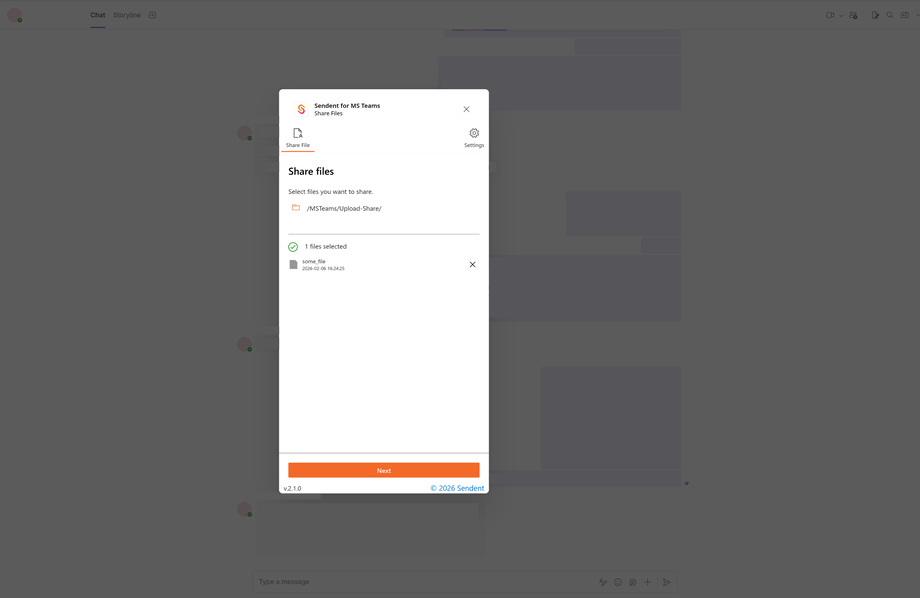
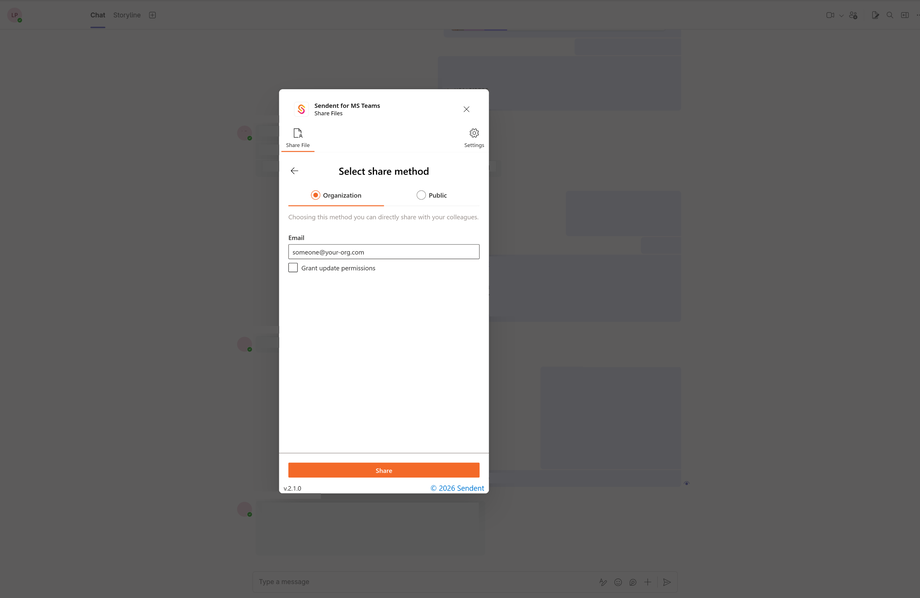
Click next. You will now be prompted to Select the share method. You can choose to either only share the file with your intended person, or create a public share. Once you’ve made your selection, click Share.
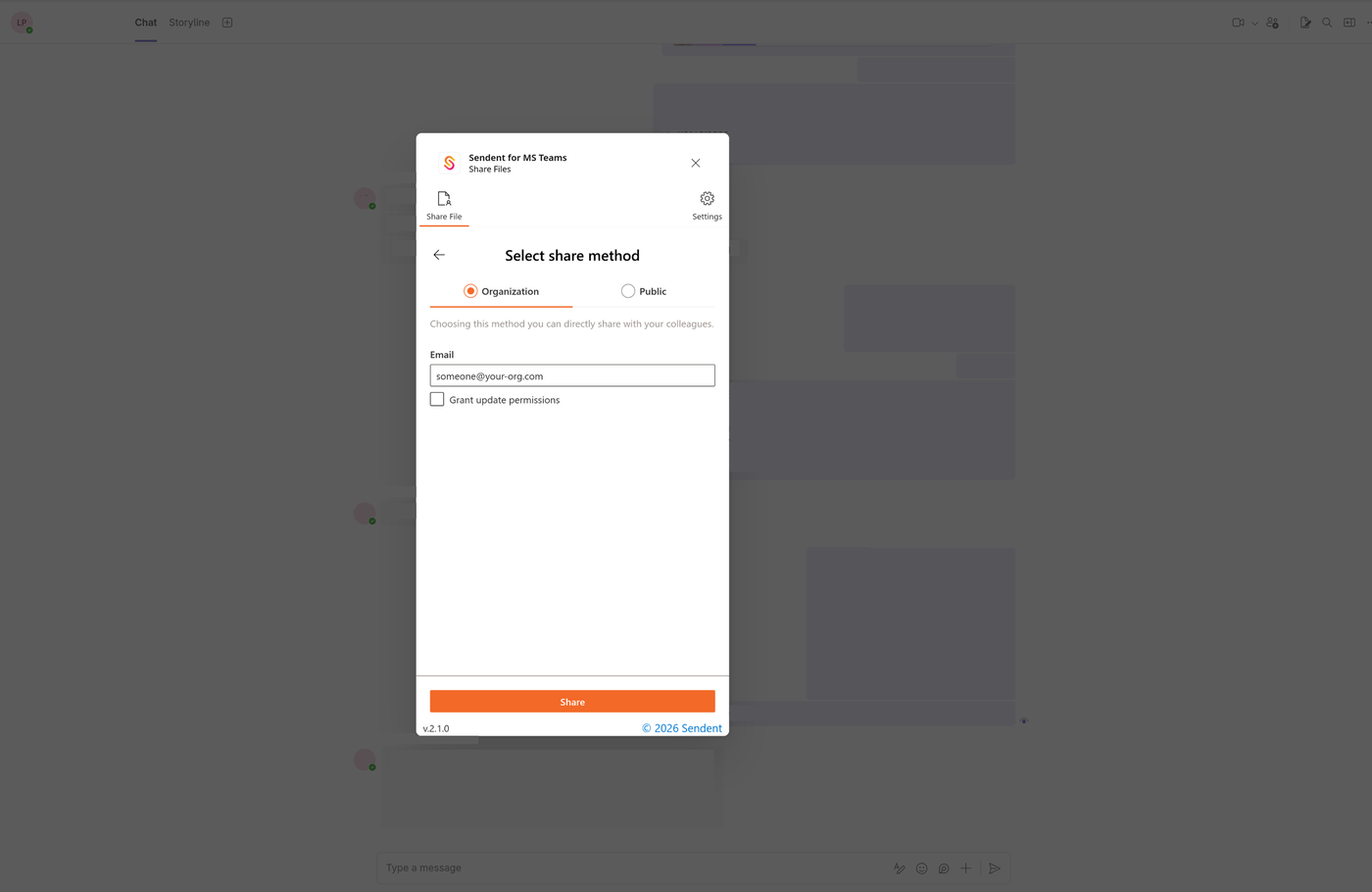
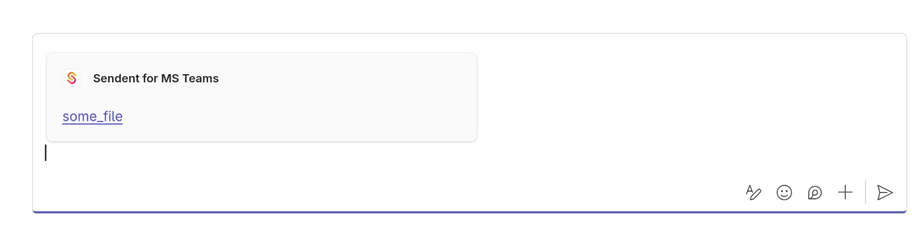
The file link will now appear as an attachment in your message box. Simply send the message to share it with your recipient.
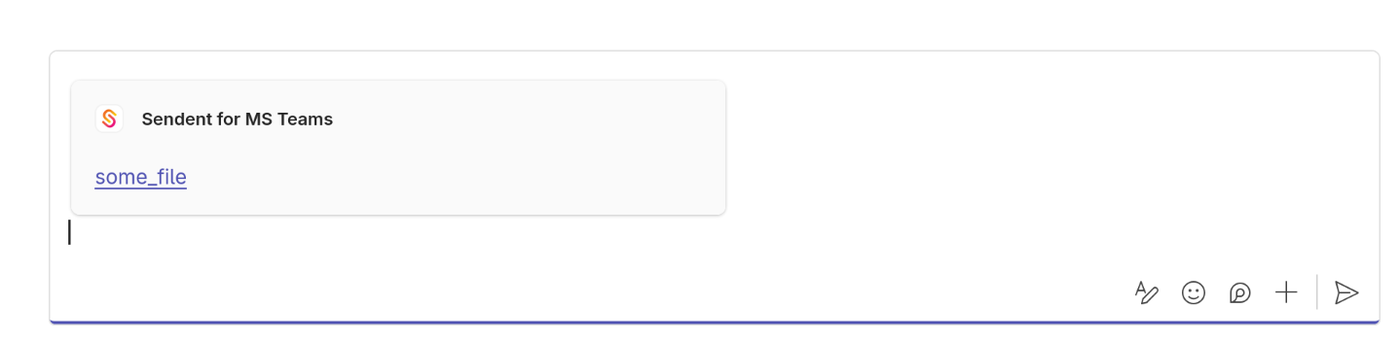
That’s it! The recipient can now access the file from the chat.