

Upload files to Nextcloud via the Plus Button in Microsoft Teams
Sendent allows you to upload files to Nextcloud directly from Microsoft Teams using the plus (+) button in your chat window. This method provides a quick way to share files without leaving your conversation.
Tip: you can also upload files by dragging and dropping them directly into the Teams chat window. See this article for more details.
Guide
Open the chat with the person you want to share files with.
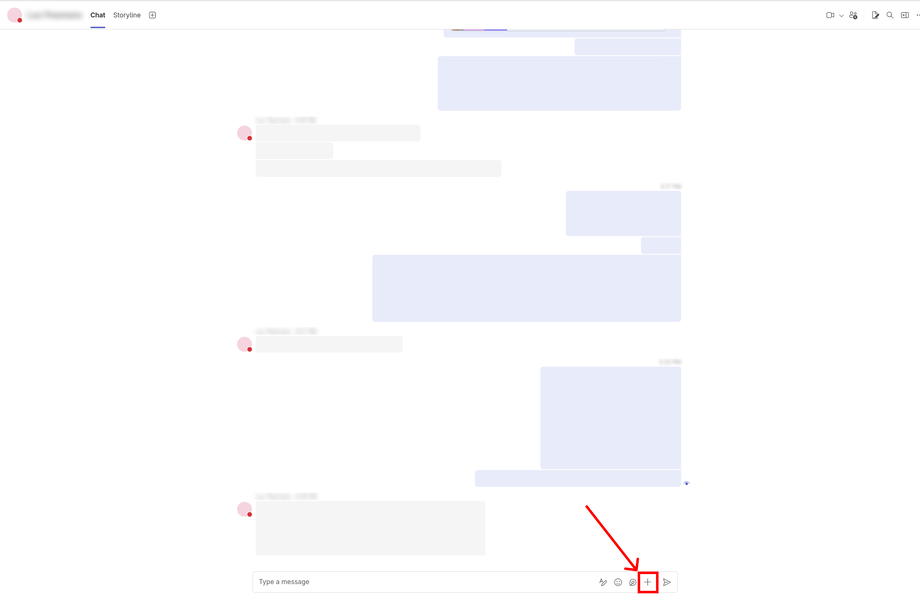
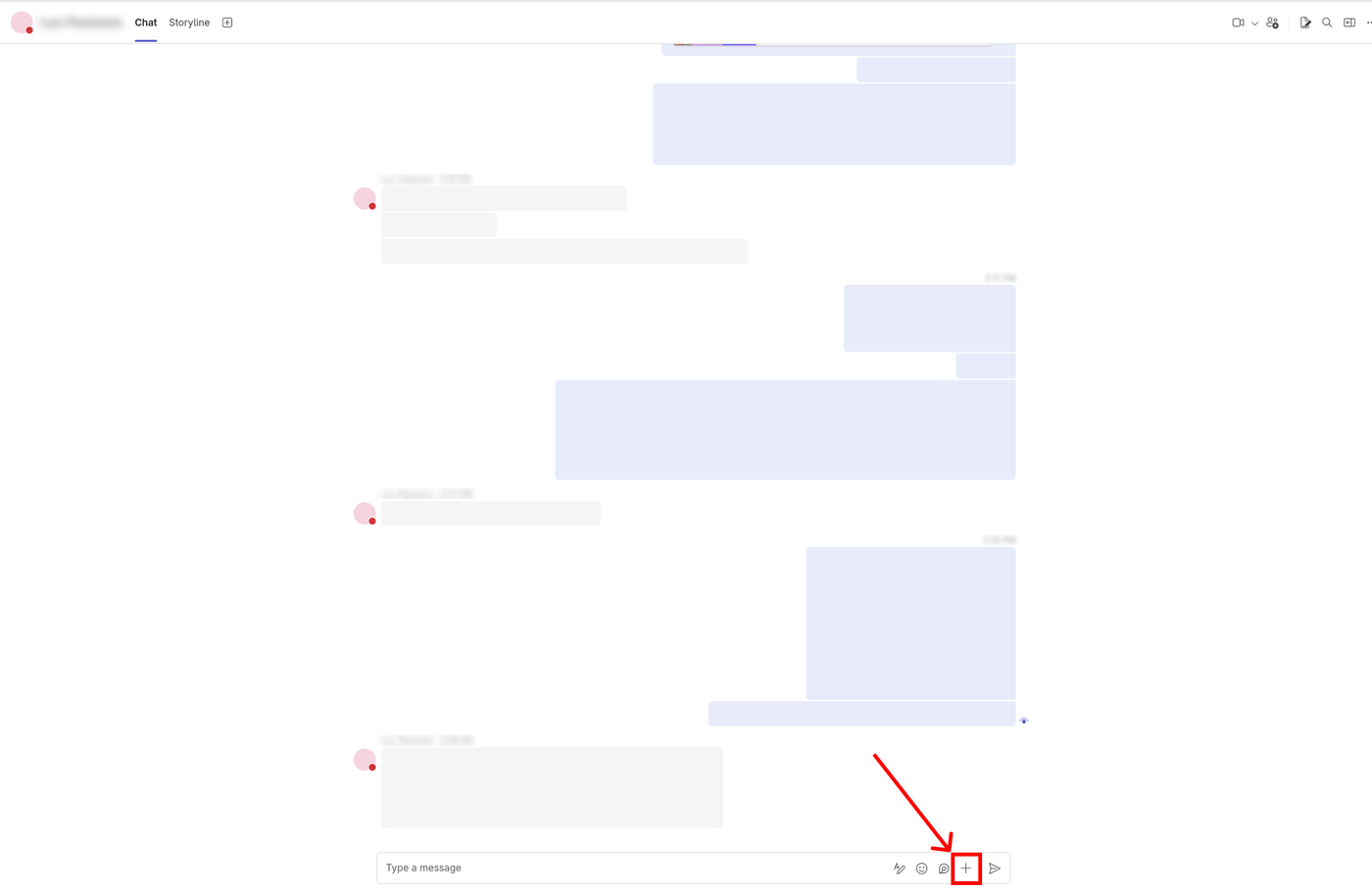
Click the plus (+) button located below the message box.
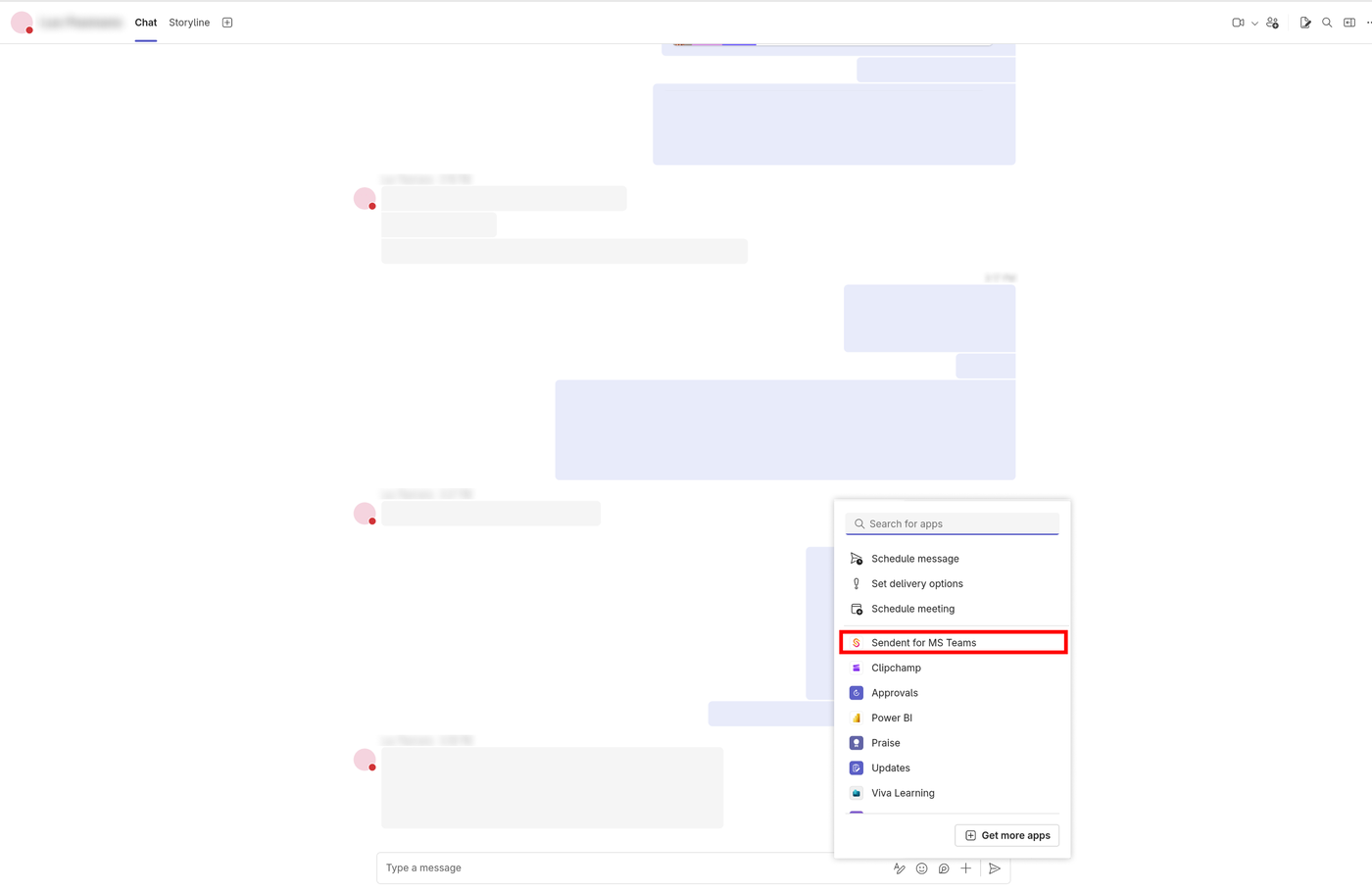
A list of available apps will appear. Select the Sendent for MS Teams app from the list.
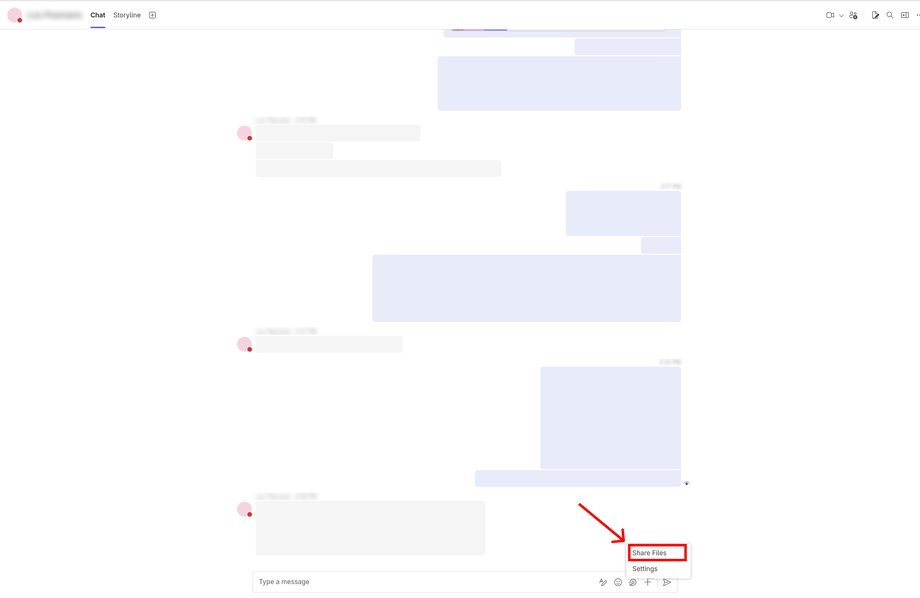
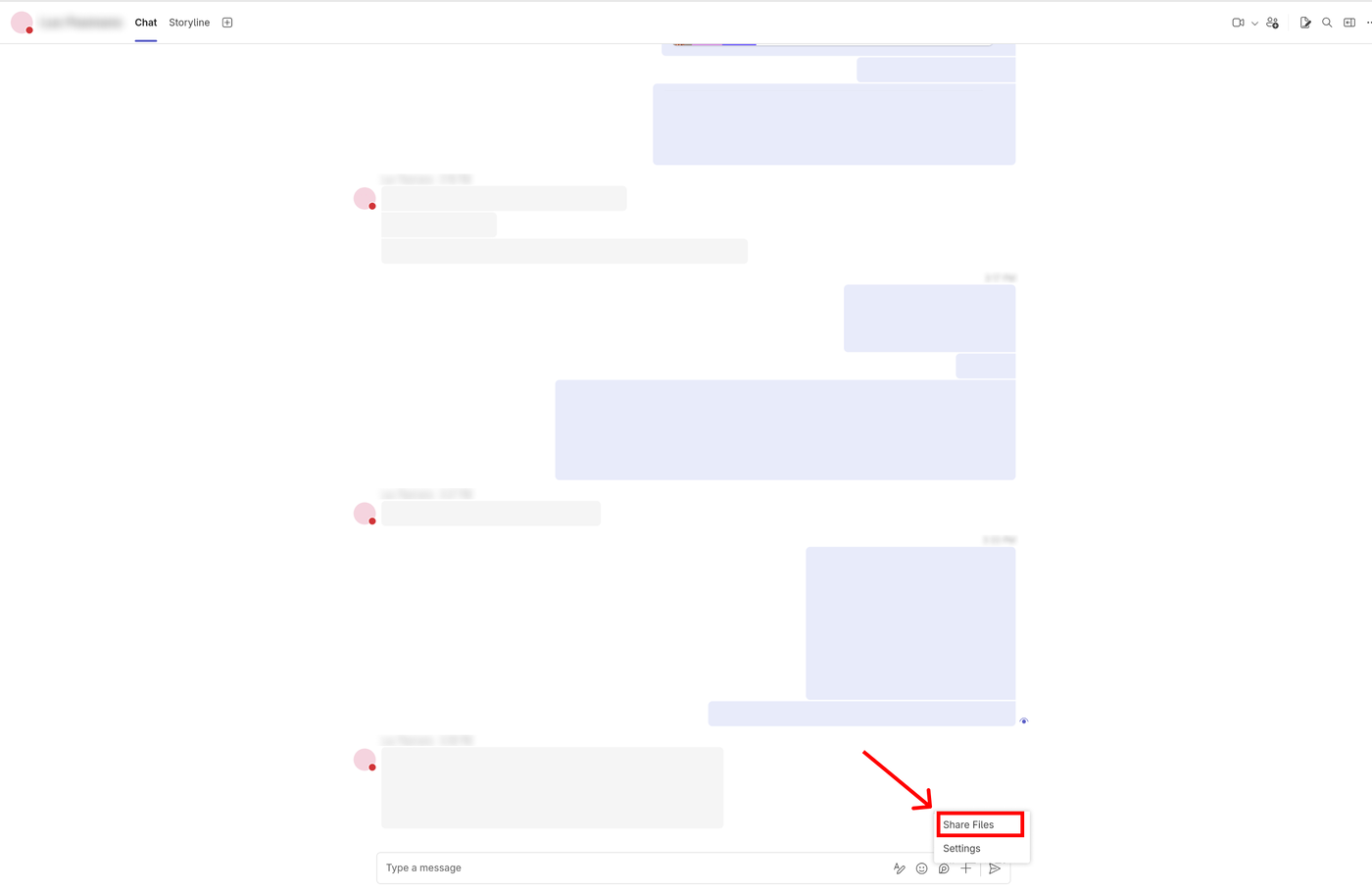
A small popup will appear with two options. Select Share files to proceed.
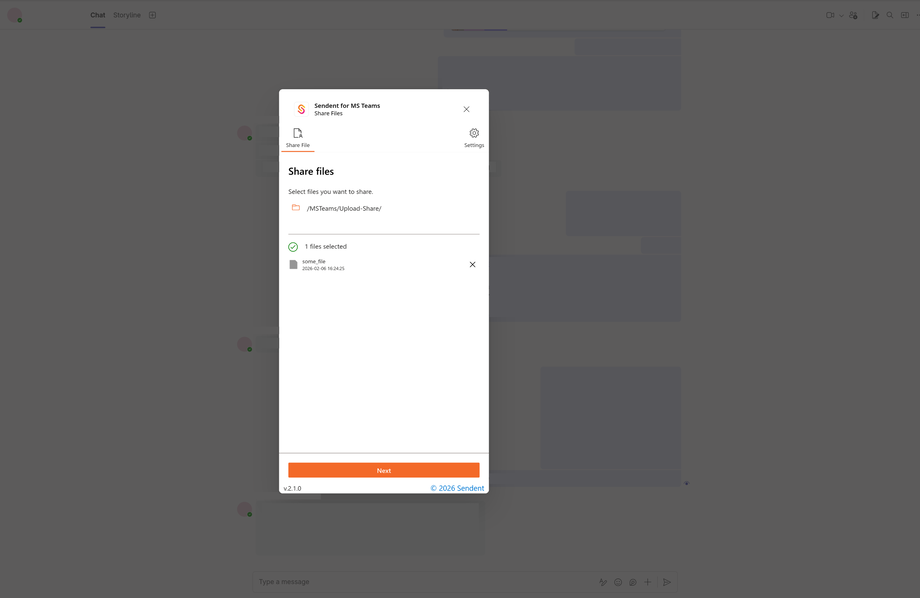
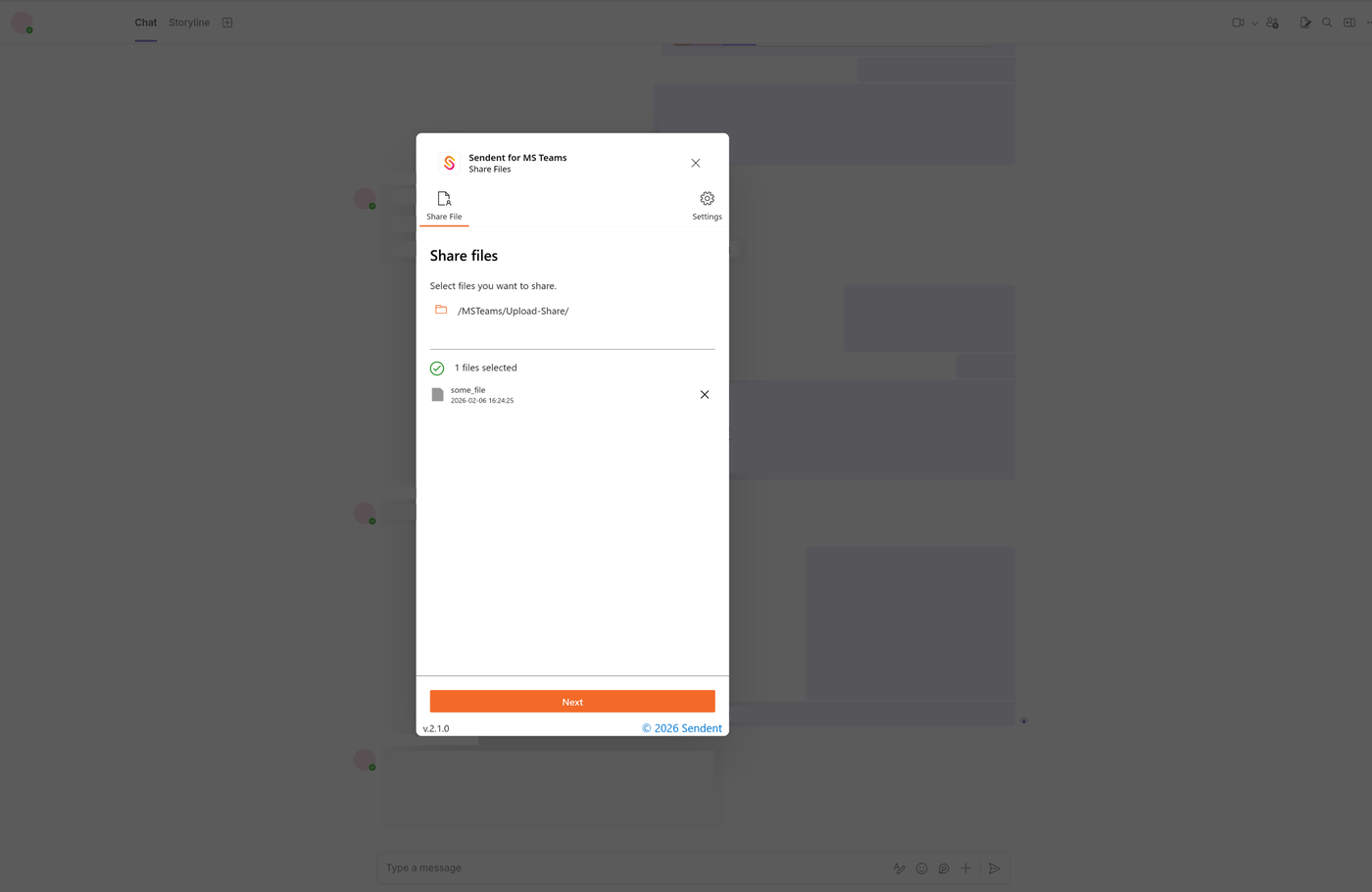
A Sendent modal will appear with an overview of your selected file and the destination directory.
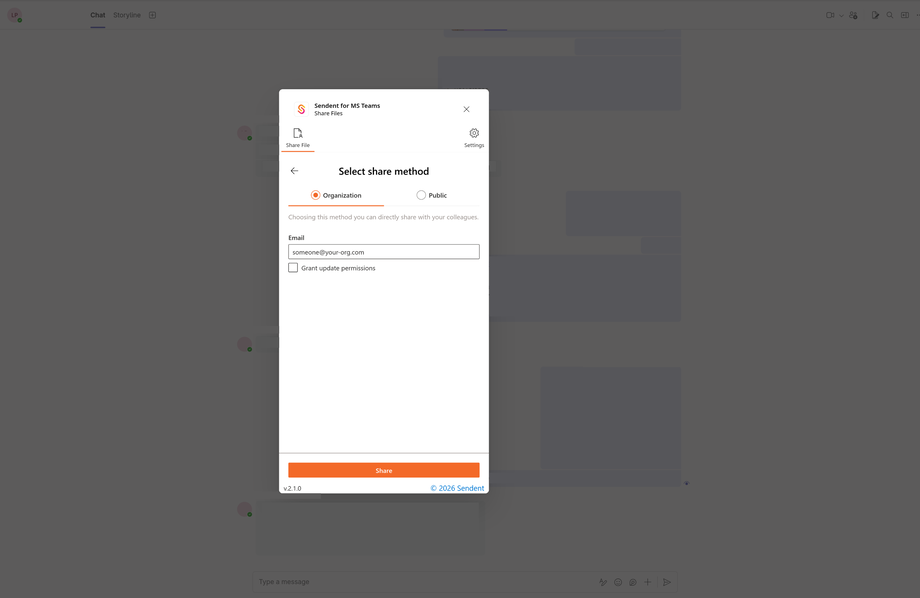
Click Next. You will now be prompted to select the sahre method. You can choose to either only share the file with your intended person, or create a public share. Once you’ve mode your selection, click Share.
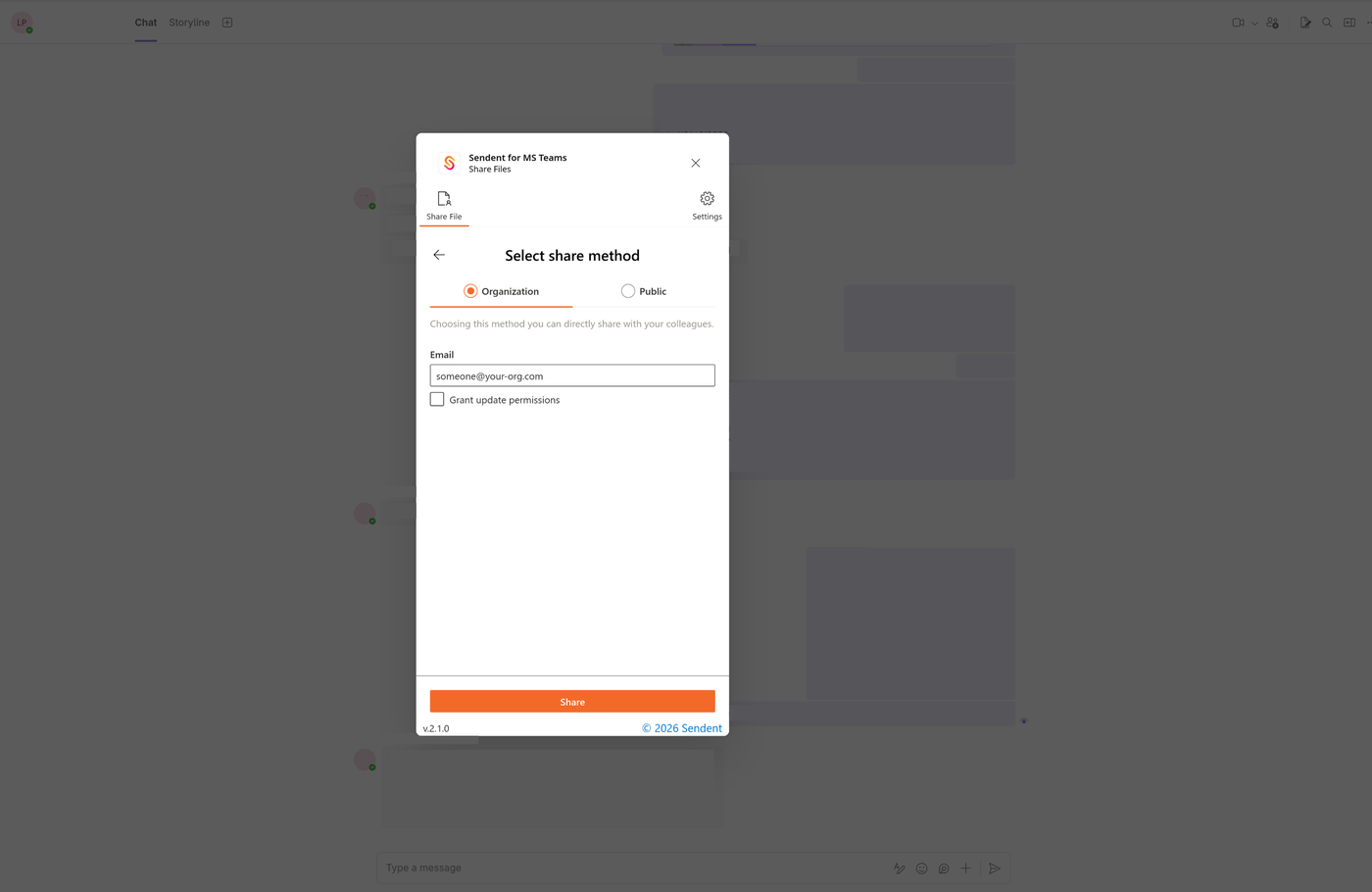
The file link will now appear as an attachment in your message box. Simply send the message to share it with your recipient.
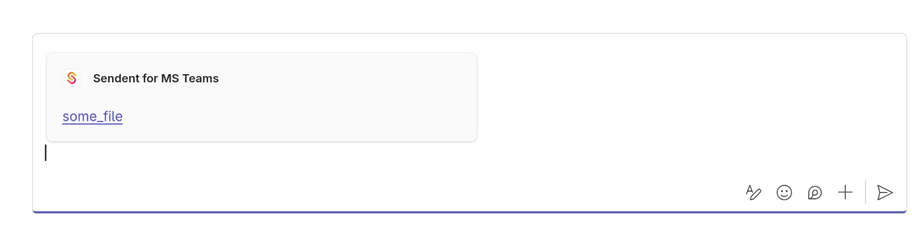
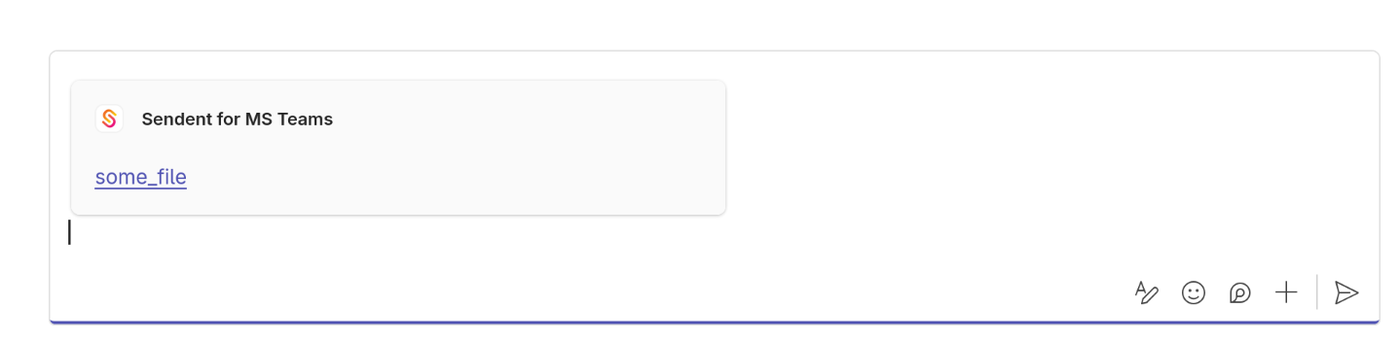
That’s it! The recipient can now access the file from the chat.