

Using the File Explorer in Sendent for Microsoft Teams
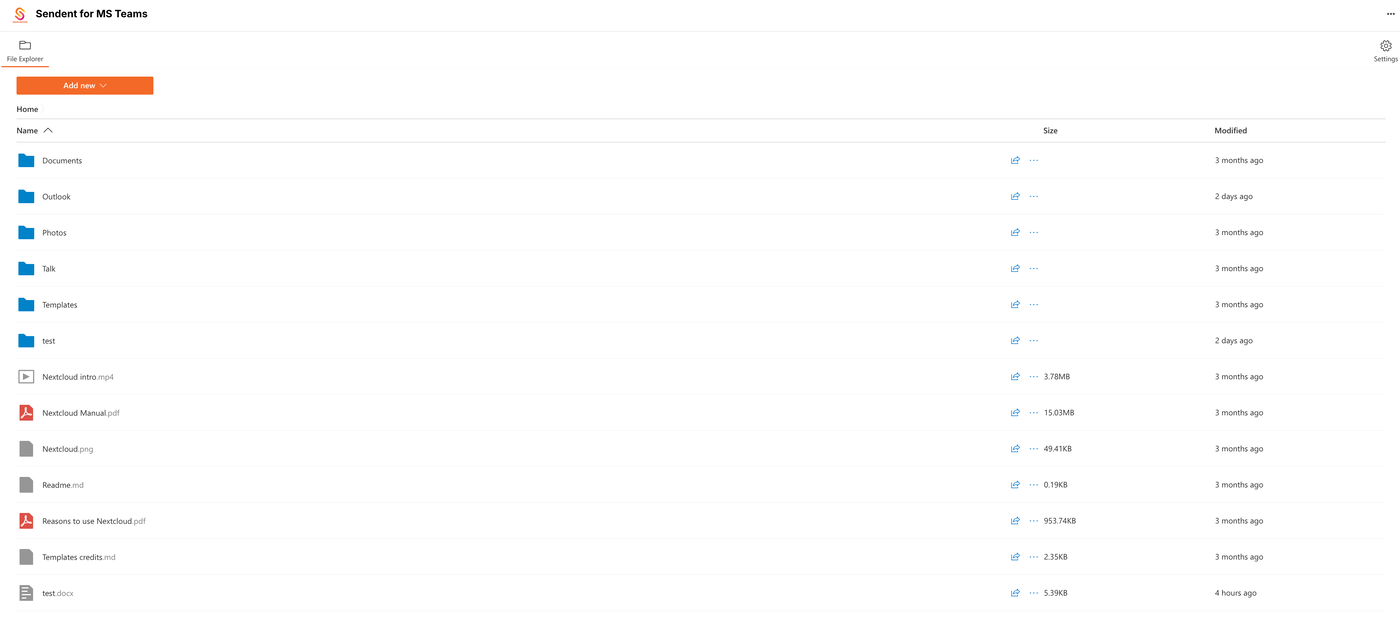
The Sendent app in Microsoft Teams includes a built-in file explorer that lets you browse, manage, and interact with your Nextcloud files without leaving Teams. This guide covers the key features of the file explorer.
Overview
When you open the Sendent app in Microsoft Teams, you will see the file explorer displaying the files and folders from your connected Nextcloud account.
Adding New Files and Folders
At the top of the file explorer, you will find an Add new button. Clicking it presents you with two options:
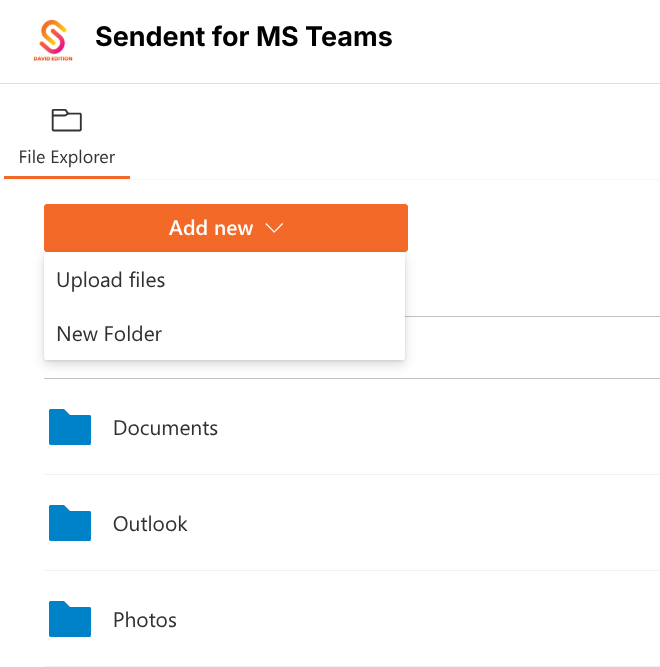
Upload files — Let’s you select and upload files from your local device to the current Nextcloud directory.
New folder — Creates a new folder in your current directory on Nextcloud
Managing Folders
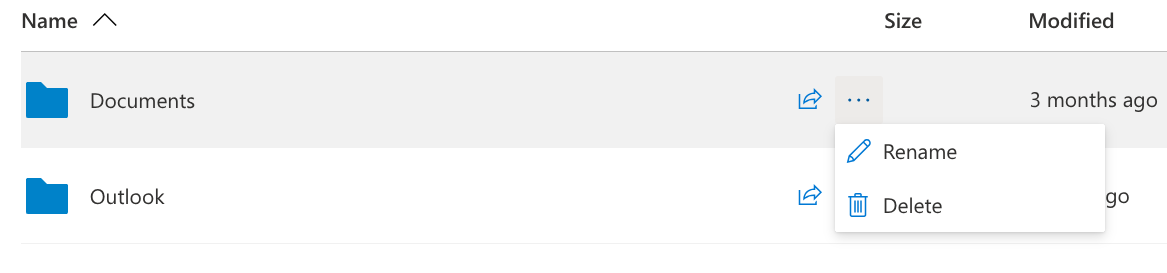
For each folder in the file explorer, the following actions are available (according to your permissions):
Navigate — Click on a folder to open it and view its content.
Rename — Change the name of the folder.
Delete — Remove the folder from Nextcloud.
Managing Files
For each file in the file explorer, the following actions are available (according to your permissions):
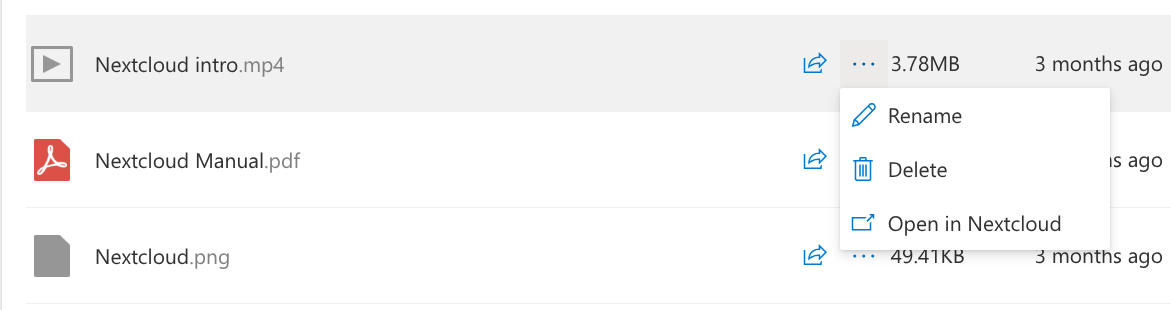
Rename — Change the name of the file
Delete — Remove the file from Nextcloud
Open in Nextcloud — Opens a new browser tab displaying the file directly in your Nextcloud environment.
Tip: Looking to share files with others in a Teams chat? See this article to learn how.