

Sign In to Nextcloud via Sendent for Microsoft Teams
Before you can start sharing files through Sendent in Microsoft Teams, you need to connect your Nextcloud account. This guide will walk you through the sign-in process.
Note: You must have the Sendent for Teams app installed before proceeding. If you haven’t installed it yet, follow the steps provided here.
Guide
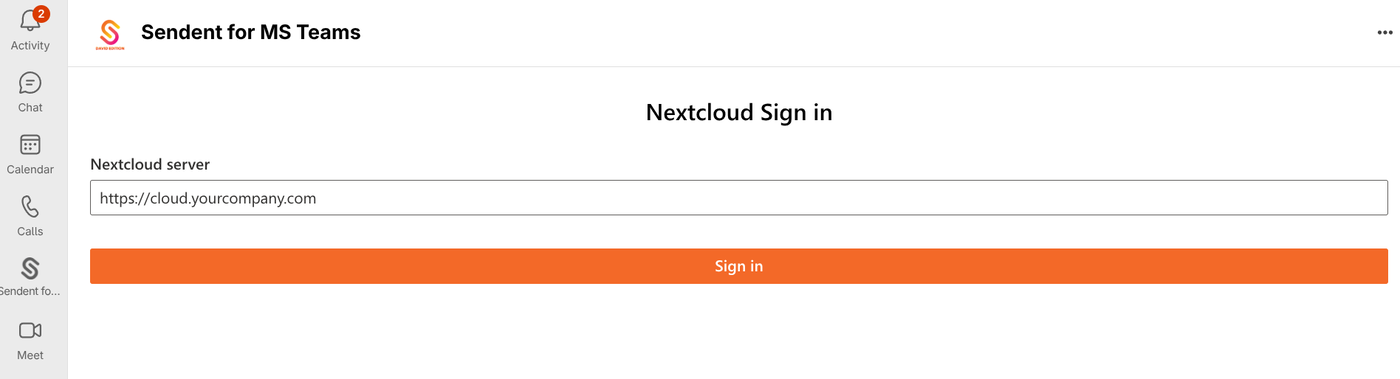
Open the Sendent app in Microsoft Teams. You will see a sign-in screen with an input field for your Nextcloud URL and a Sign in button.
Enter your Nextcloud server URL in the input field (e.g.,
https://cloud.yourcompany.com) and click Sign in.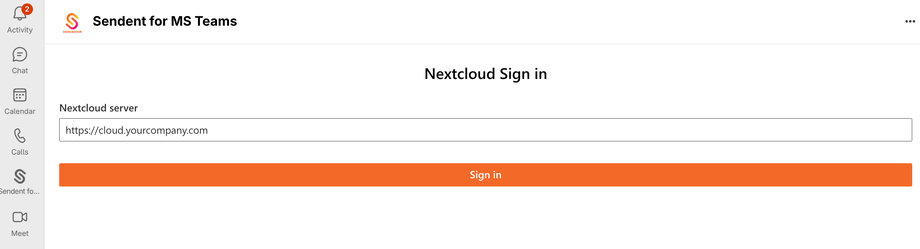
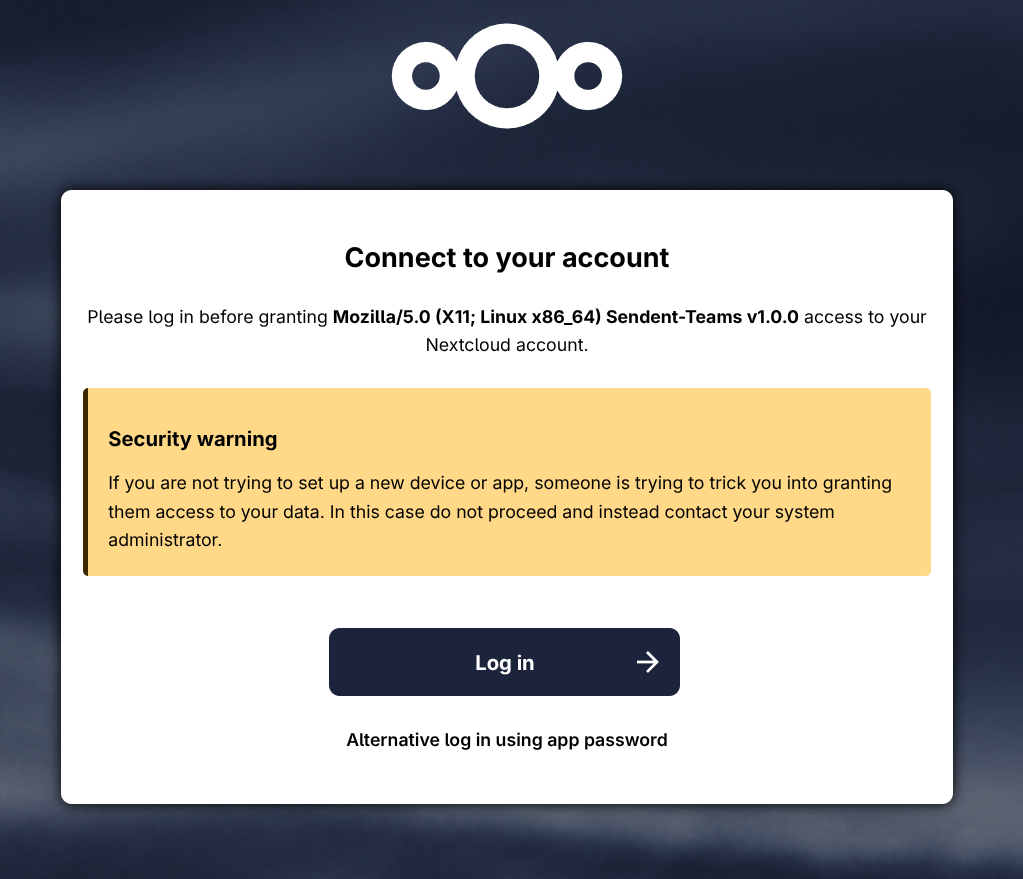
A new browser tab will open, displaying the Nextcloud Connect to your account page. Click Log in.
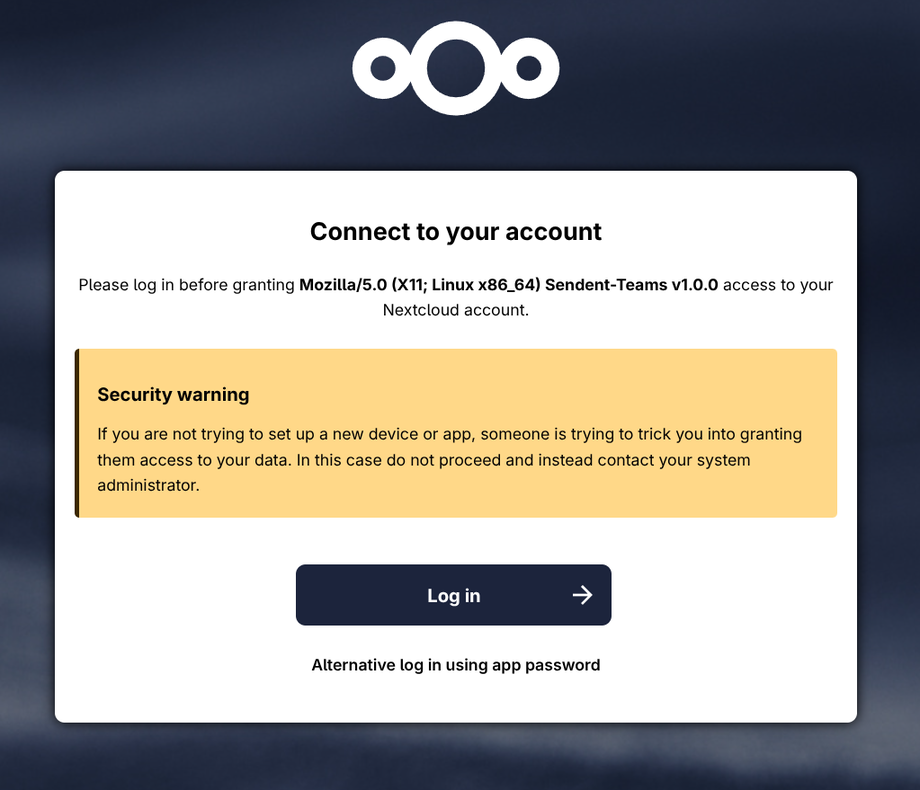
Enter your Nextcloud credentials (username and password) and submit them.
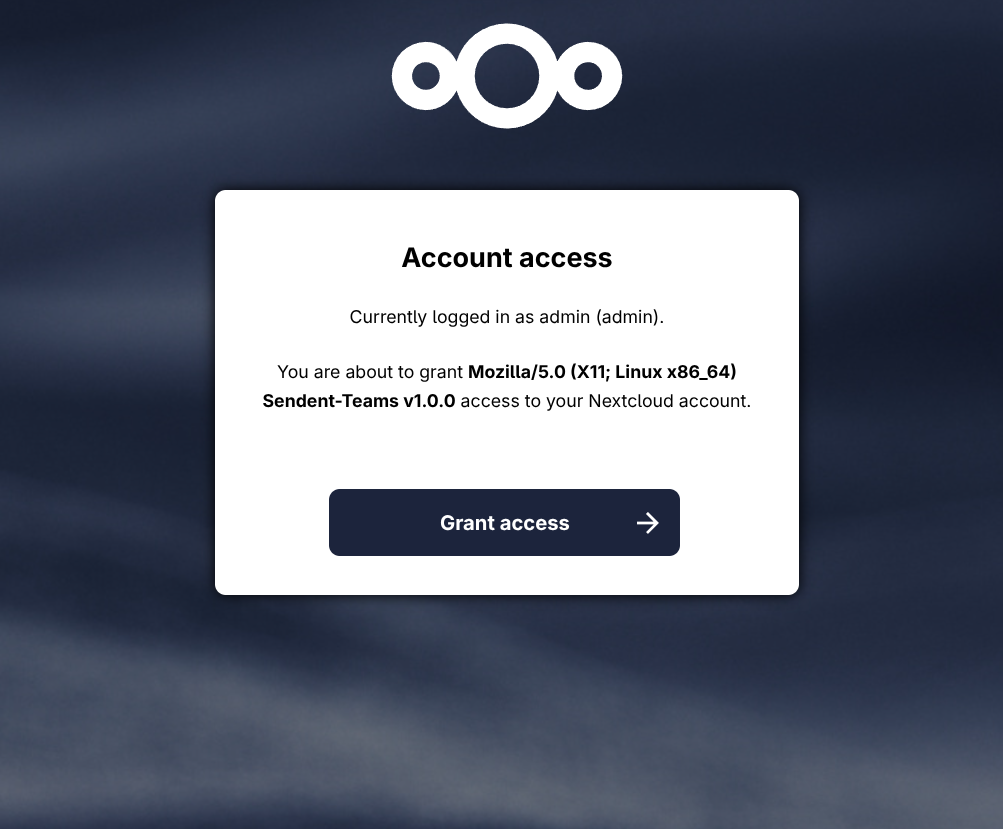
You will be asked to grant Sendent access to your Nextcloud account. Click Grant access.
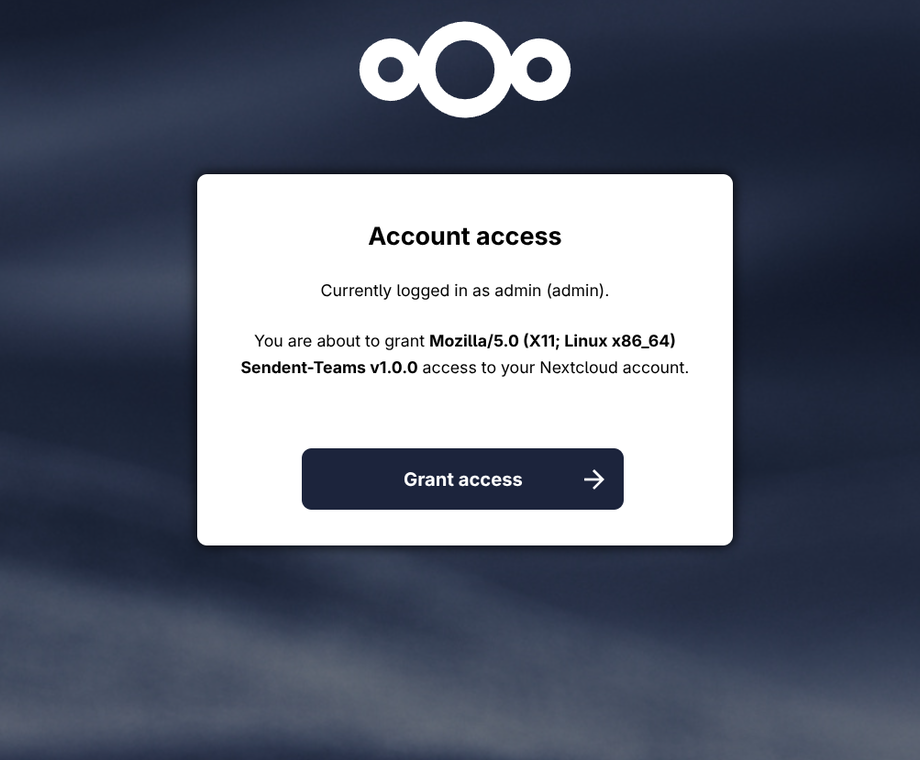
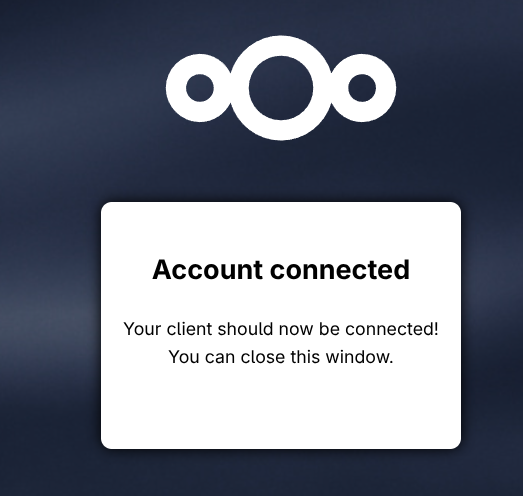
A success message will confirm that the connection has been established. You can now close the browser tab and return to Microsoft Teams.
Back in Microsoft Teams, you will see that you are now logged in and can browse your Nextcloud files through the file explorer.
You’re all set! You can now start sharing files from Nextcloud directly within your Teams conversations. Refer to this article to learn how.
Troubleshooting
If the sign-in process fails, verify the following:
Your Nextcloud server URL is entered correctly, including the
https://prefix.Your Nextcloud credentials are correct and valid.
Your Nextcloud server is reachable and not experiencing downtime.
The Sendent for Teams app has been properly configured.
If the issue persists, create a ticket and we’ll come back to you as soon as possible.