

How to Use the Automatic Email Signature (Cross-Platform)
Nextcloud for Outlook can add your organization's email signature to your emails automatically. Your administrator designs the signature in Nextcloud, and the add-in fills it in with your own profile details: your name, role, phone number, and so on. You do not have to copy or maintain the signature yourself.
This feature is available from Nextcloud for Outlook version 3.0.0 (formerly Sendent for Outlook). It is off by default and only your administrator can enable it.
It works in Outlook on the web, the new Outlook for Windows, classic Outlook for Windows and Outlook for Mac. It does not work in the Outlook mobile apps.
How it works
Your administrator enables the signature push in the Sendent app for Nextcloud and designs a template. Different groups in your organization can have different templates.
You sign in to Nextcloud in the Nextcloud for Outlook pane once.
Every time you start a new email, reply, reply all or forward, the add-in fetches your personal signature from Nextcloud and inserts it into the message.
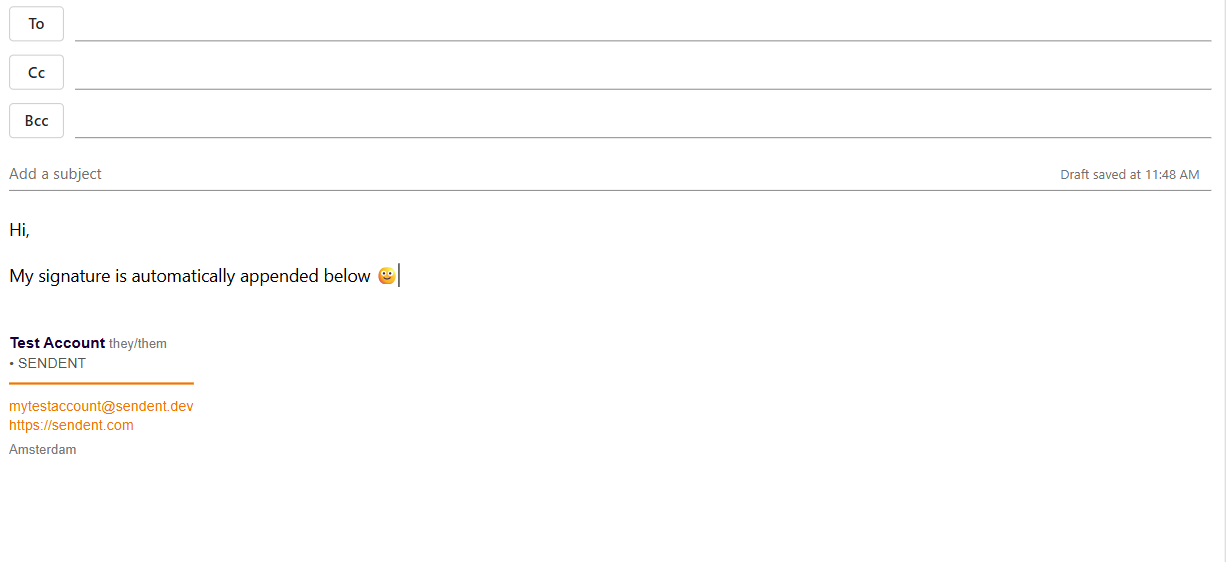
There is nothing to install and no need to restart Outlook. The signature does not appear in Outlook's own list of signatures. Instead, it is added to each message when you open it.
Where does the information come from?
The signature is built from your Nextcloud profile. To make sure it is complete and correct:
Open Nextcloud in your browser.
Click your profile picture in the top-right corner and choose Personal settings.
Under Personal info, fill in the fields your organization uses in the signature. These may include your full name, pronouns, email, phone number, location, website, organisation, role, headline and about text.
Save. The next email you start uses the updated details.
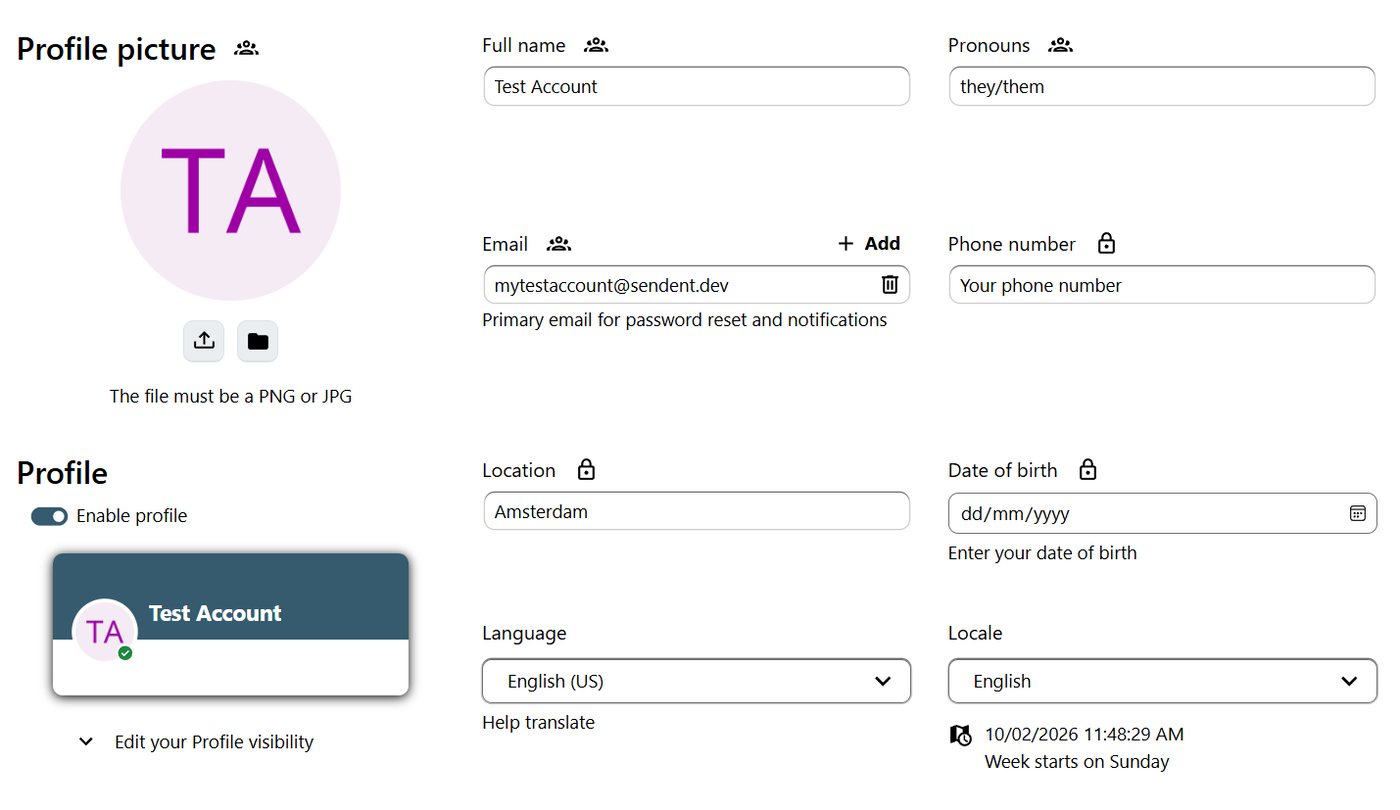
Which of these fields end up in the signature depends on the template your administrator has designed. A field you have left empty will simply be empty in the signature.
Note that the visibility setting next to each field does not matter. A field set to Private is still used in your own signature.
If the template uses separate first, middle and last names, they come from your full name. The first word is your first name, the last word is your last name, and anything in between is your middle name
Keeping the signature up to date
The add-in fetches your signature fresh for every new email. If your administrator changes the template, or you change your profile, the next email you start already has the new version. Emails and drafts you started earlier keep the old one.
You can edit or remove the signature in a single email before you send it. This only affects that email. The next one gets the Nextcloud signature again.
To change your details for good, update your Nextcloud profile, not the signature in the email.
If you log out of Nextcloud in Nextcloud for Outlook, or your administrator turns the feature off, new emails no longer get the Nextcloud signature.
Troubleshooting
The signature does not appear. Open the Nextcloud for Outlook pane and check that you are signed in to Nextcloud. The add-in cannot ask you to sign in while you start an email, so you have to sign in from the pane first. Then start a new email. If it still does not appear, ask your administrator whether the feature is enabled for your group.
It works in Outlook on the web but not in classic Outlook for Windows. Open the Nextcloud for Outlook pane once in classic Outlook, then start a new email. This shares your sign-in with the part of the add-in that inserts the signature.
Part of the signature is empty. Fill in the missing field in your Nextcloud profile under Personal info, then start a new email.
The first and last name are split incorrectly. The add-in splits your full name on spaces. Check your full name in Nextcloud, or ask your administrator to use the full name in the template.
The logo is missing. The logo is loaded from your Nextcloud server. Some email programs block images from the internet until you allow them.
There is no signature on my phone. The Outlook mobile apps are not supported. Add a signature in the app's own settings instead.