

Setting up Sendent for Office
Sendent for Office allows you to use your Microsoft 365 subscription to open and edit Office documents from within Nextcloud using Microsoft 365 Office for the web. Supported file types include Word, Excel, and PowerPoint documents.
Privacy Notice
When using Microsoft 365 Office Online, your documents will be processed by Microsoft servers. Only activate this integration if you are aware of the data privacy implications and have obtained necessary user consent. Please review Microsoft's privacy policy and ensure compliance with applicable data protection regulations (GDPR, etc.).
Important: Microsoft may process data outside your own infrastructure. Sendent cannot guarantee in which region Microsoft processes the data.
What this setup does
This guide explains how to connect your Nextcloud environment to Sendent for Office.
The end result is that Microsoft 365 Office for the web can communicate with your Nextcloud server through a Sendent-provided WOPI domain.
In this guide, we use the following example hostnames:
Purpose | Example |
|---|---|
Customer Nextcloud instance | |
Sendent-provided WOPI domain | |
Internal Nextcloud backend |
Replace these examples with the values used in your own environment.
End-state architecture
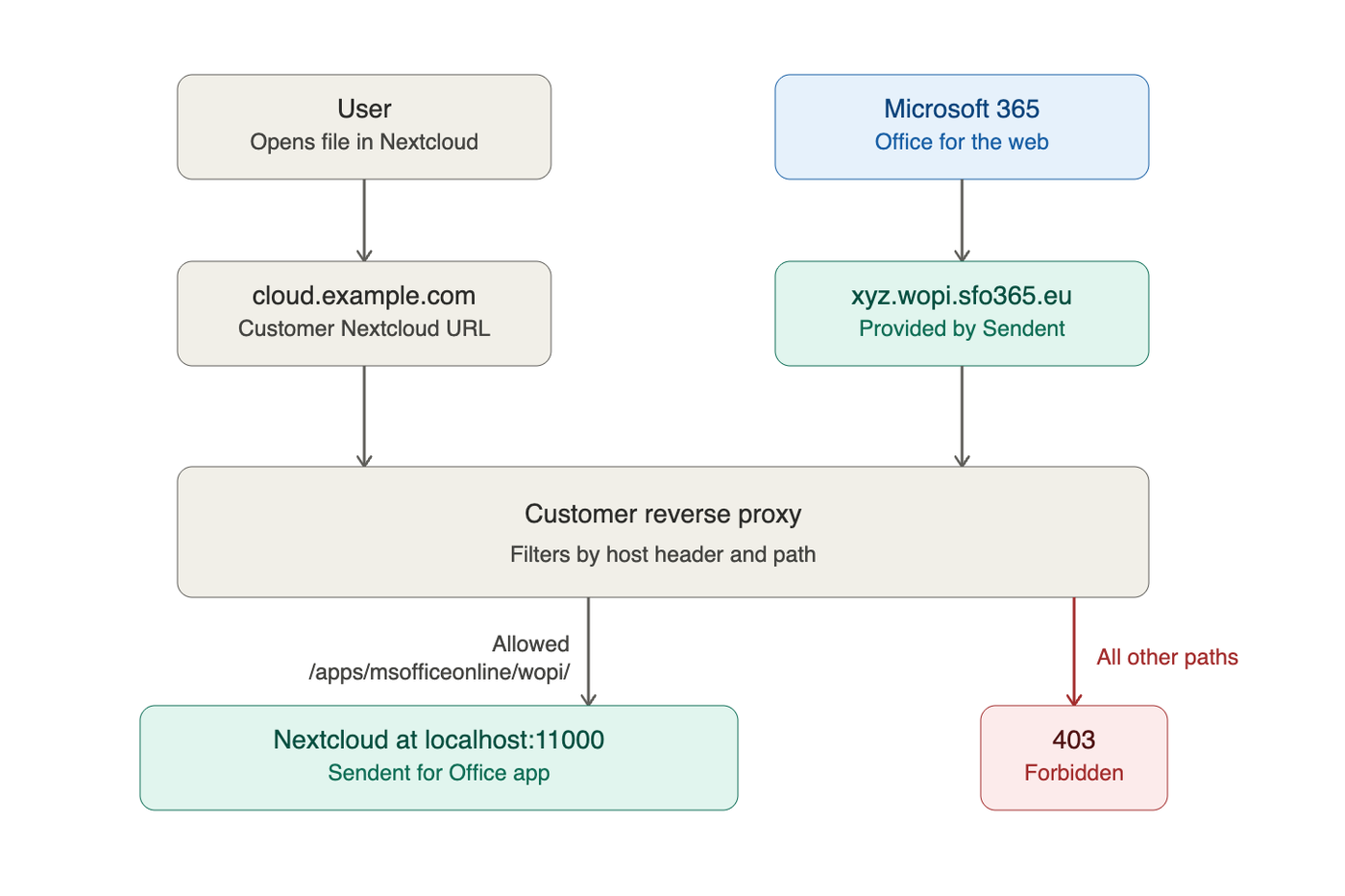
The Sendent-provided WOPI domain should only expose the required WOPI endpoints. It should not expose the full Nextcloud web interface.
Prerequisites
Before you start, make sure you have:
A working Nextcloud instance.
Administrator access to Nextcloud.
Access to configure your reverse proxy.
A valid Microsoft 365 subscription for the users who will use Office for the web.
A valid Sendent for Office license.
A Sendent-provided WOPI domain, for example xyz.wopi.sfo365.eu.
A valid HTTPS certificate for the Sendent-provided WOPI domain.
Step 1 — Request your Sendent for Office license
Request your Sendent for Office license from Sendent.
After your license is available, you will receive:
A license email.
A license key.
A Sendent-provided WOPI domain.
The Sendent-provided WOPI domain is the hostname Microsoft 365 Office for the web will use to communicate with your Nextcloud instance.
Example:
Step 2 — Install and activate the Sendent for Office app in Nextcloud
In your Nextcloud administrator account:
Open Apps.
Search for Sendent for Office.
Install and enable the app.
After installation, go to:
Administration settings → Office Online
Enable Microsoft 365 Office Online and enter your Sendent license email and license key.
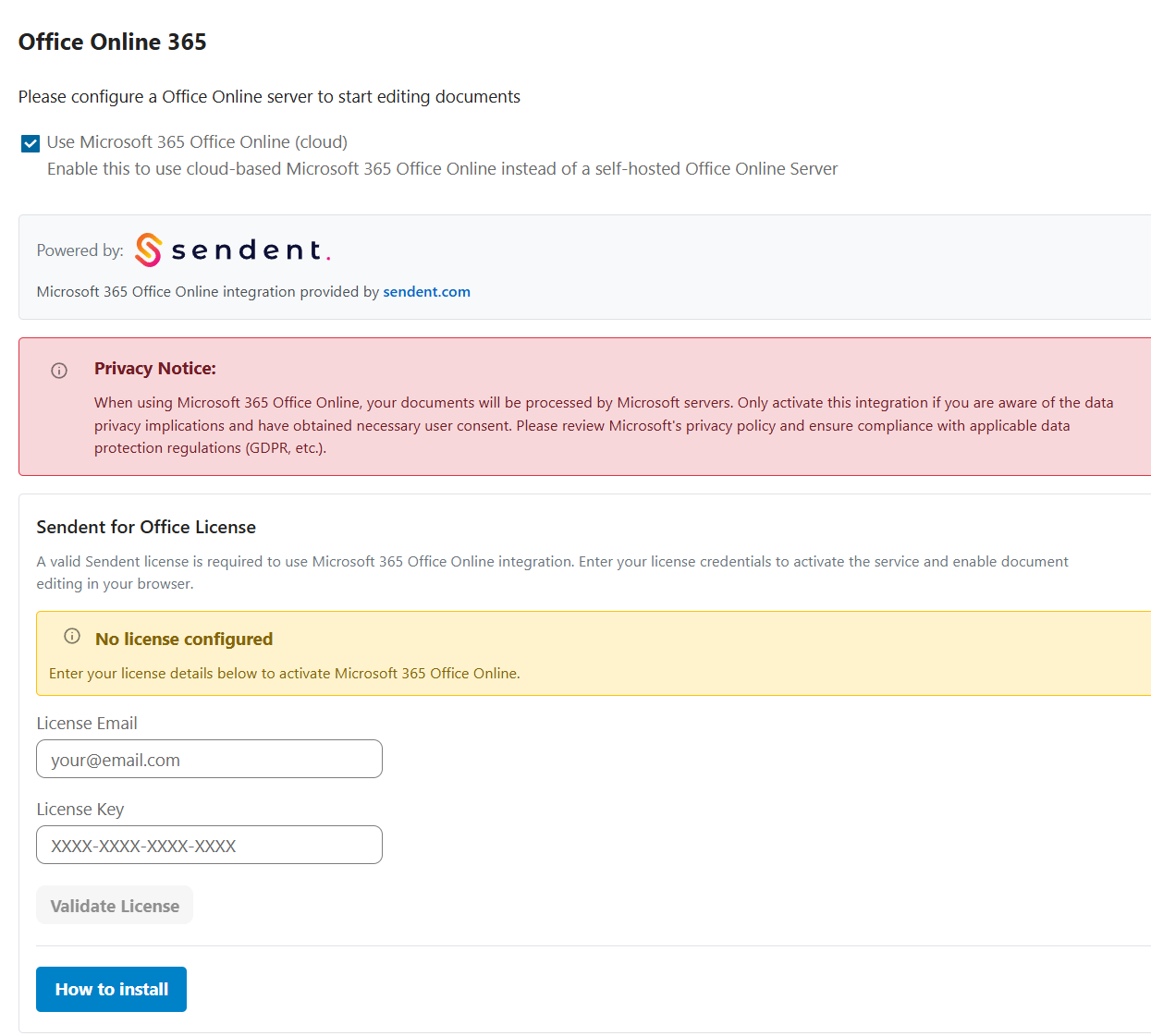
Once the license has been validated, the Sendent-provided WOPI domain will be available for the next configuration steps.
Step 3 — Configure DNS
The Sendent-provided WOPI domain must point to your Nextcloud environment.
Example:
xyz.wopi.sfo365.eu → cloud.example.com
This is usually configured as a CNAME record.
Example DNS configuration:
xyz.wopi.sfo365.eu. CNAME cloud.example.com.
After the DNS record has been configured, verify that the Sendent-provided WOPI domain resolves correctly before continuing.
Step 4 — Configure the reverse proxy
The reverse proxy must accept traffic for both:
and:
However, the Sendent-provided WOPI domain should only allow traffic to the required WOPI endpoints.
In the examples below, Nextcloud runs internally on:
Adjust this value to match your own environment.
Example NGINX configuration for the main Nextcloud domain
server { server_name cloud.example.com; location / { proxy_pass http://localhost:11000; proxy_set_header X-Real-IP $remote_addr; proxy_set_header Host $host; proxy_set_header X-Forwarded-For $proxy_add_x_forwarded_for; client_max_body_size 0; # Websocket proxy_http_version 1.1; proxy_set_header Upgrade $http_upgrade; } listen 443 ssl; # managed by Certbot ssl_certificate /etc/letsencrypt/live/cloud.example.com/fullchain.pem; # managed by Certbot ssl_certificate_key /etc/letsencrypt/live/cloud.example.com/privkey.pem; # managed by Certbot include /etc/letsencrypt/options-ssl-nginx.conf; # managed by Certbot ssl_dhparam /etc/letsencrypt/ssl-dhparams.pem; # managed by Certbot}server { if ($host = cloud.example.com) { return 301 https://$host$request_uri; } # managed by Certbot listen 80; server_name cloud.example.com; return 404; # managed by Certbot}Example NGINX configuration for the Sendent-provided WOPI domain
server{ server_name xyz.wopi.sfo365.eu; # Only allow WOPI endpoints - block everything else location /apps/msofficeonline/wopi/ { proxy_pass http://localhost:11000; proxy_set_header X-Real-IP $remote_addr; proxy_set_header Host $host; proxy_set_header X-Forwarded-For $proxy_add_x_forwarded_for; client_max_body_size 0; # Websocket proxy_http_version 1.1; proxy_set_header Upgrade $http_upgrade; } # Also allow the index.php WOPI routes (alternative path format) location ~ ^/index\.php/apps/msofficeonline/wopi/ { proxy_pass http://localhost:11000; proxy_set_header X-Real-IP $remote_addr; proxy_set_header Host $host; proxy_set_header X-Forwarded-For $proxy_add_x_forwarded_for; client_max_body_size 0; proxy_http_version 1.1; proxy_set_header Upgrade $http_upgrade; } # Block all other paths - return 403 Forbidden location / { return 403 "WOPI endpoints only"; } listen 443 ssl; # managed by Certbot ssl_certificate /etc/letsencrypt/live/cloud.example.com/fullchain.pem; # managed by Certbot ssl_certificate_key /etc/letsencrypt/live/cloud.example.com/privkey.pem; # managed by Certbot} server { if ($host = xyz.wopi.sfo365.eu) { return 301 https://$host$request_uri; } # managed by Certbot listen 80; server_name xyz.wopi.sfo365.eu; return 404; # managed by Certbot}Step 5 — Configure HTTPS
HTTPS is required. HTTP-only traffic is not supported.
Request and configure a dedicated SSL certificate for the Sendent-provided WOPI domain.
Example:
You can use Let’s Encrypt or another certificate authority.
Validate the setup
After completing the configuration, check the following:
The Sendent for Office app is installed and enabled in Nextcloud.
The license email and license key are accepted.
The Sendent-provided WOPI domain resolves correctly.
HTTPS works for the Sendent-provided WOPI domain.
Opening the Sendent-provided WOPI domain directly does not expose the full Nextcloud interface.
A supported Word, Excel, or PowerPoint document can be opened from Nextcloud using Microsoft 365 Office for the web.