

Set a Default Upload Folder for Teams and Channels
As a team or channel owner, you can set a default Nextcloud folder for file uploads within Sendent for Microsoft Teams. This ensures any files shared within a specific team or channel are automatically uploaded to a designated directory on Nextcloud, keeping your files organized without requiring users to manually select a destination each time.
For example, if your organization has an HR team with a channel called “Pension”, you could set a default folder so that all files shared in that channel are automatically uploaded to a specific Nextcloud directory (e.g., /HR/Pension). You can also set a default folder at the team level, so all channels within that team share the same upload destination unless overriden by a channel-specific default.
Guide
Open the Sendent app within a channel in Microsoft Teams and navigate to the folder you want to set as the default upload destination.
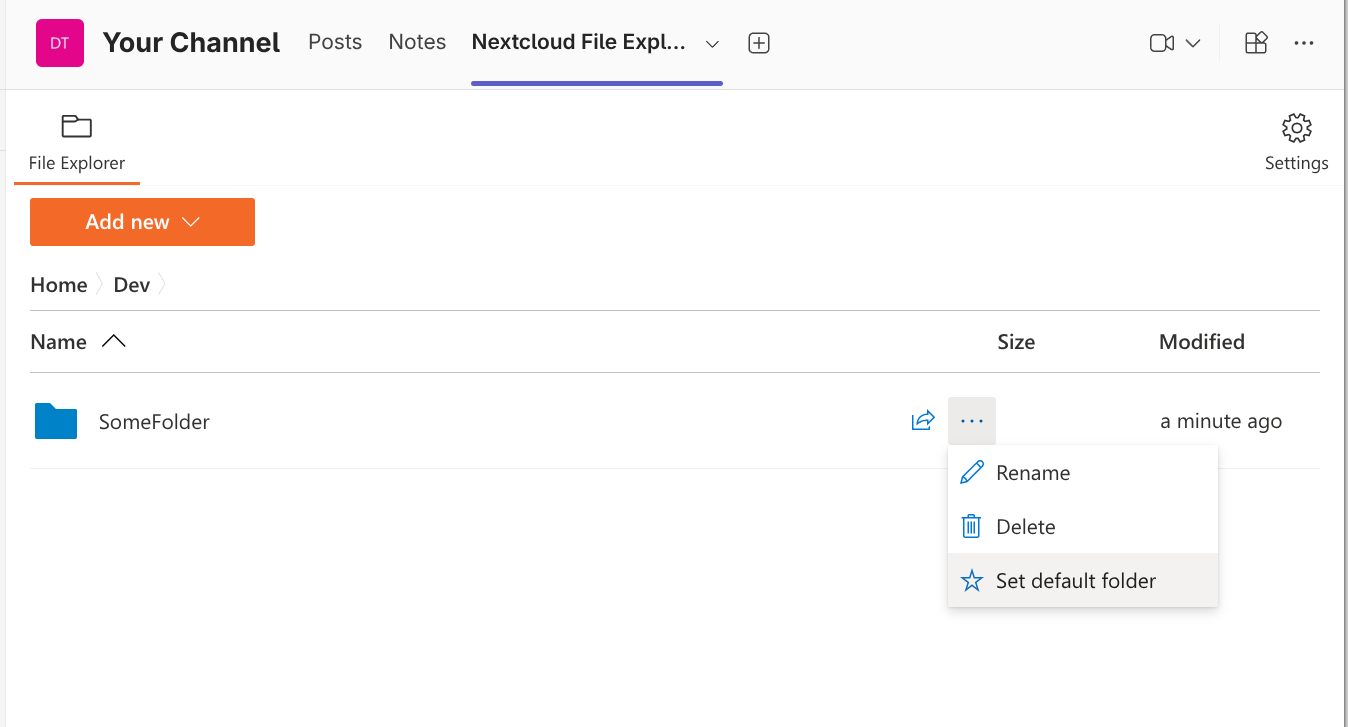
Right-click on the folder. A context menu will appear with the option Set as default folder.
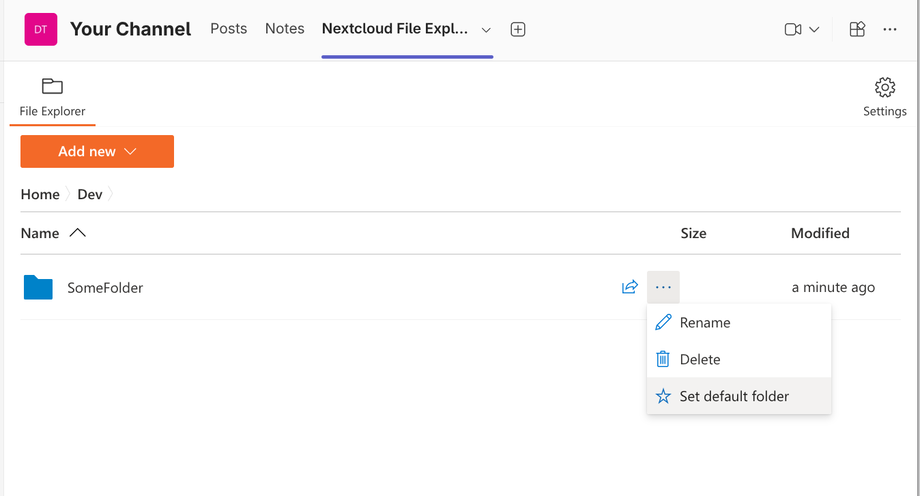
You will be presented with two options:
Set default folder for this channel: All files uploaded in this specific channel will be stored in the selected Nextcloud folder.
Set default folder for the whole team: All files uploaded across any channel in the team will be stored in the selected Nextcloud folder, unless a channel has its own default folder set.
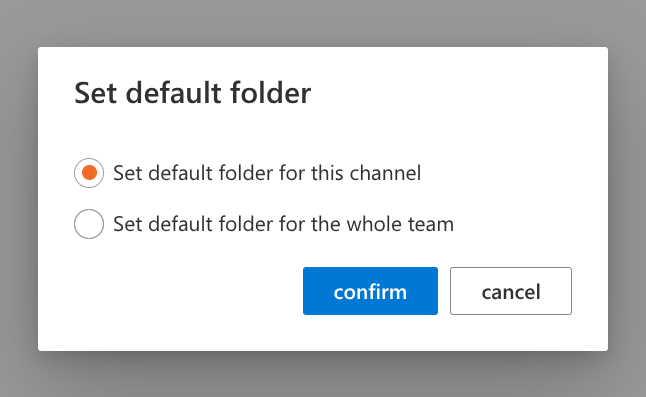
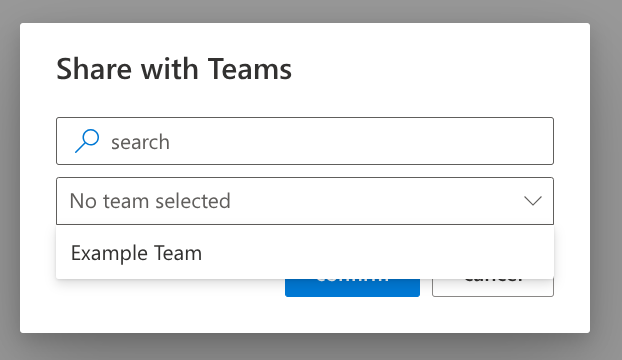
Select your preferred option. In the next step, you will be given the option to share the folder with Nextcloud teams from your Nextcloud Contacts. This allows relevant groups to also have access to the folder on Nextcloud. Select the teams you want to share with, or skip this step if sharing is not needed.
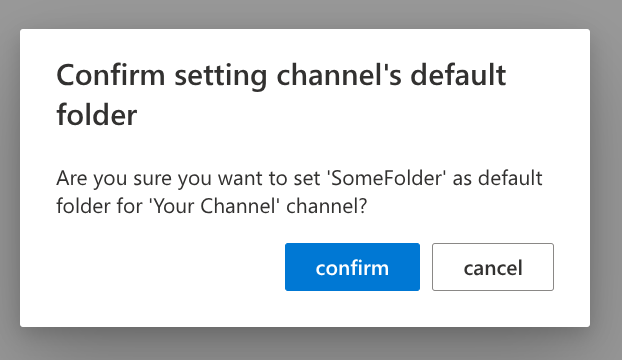
A confirmation prompt will appear. Confirm to apply the setting.
From now on, when team members share files in the relevant team or channel, the selected Nextcloud folder will be used as the upload destination by default.