

How to Share Files from Apple Mail
Instead of attaching files, you add them with the Nextcloud button. When you send the email, the files are uploaded to your Nextcloud and shared with every recipient.
Share files
- Create a new email and enter the recipients and a subject. The subject is used as the name of the folder in Nextcloud.
- Click the Nextcloud button in the compose window's toolbar.

- In the Attach Files window, click Add Files, select one or more files and click Add. To remove a file, click the × next to it.
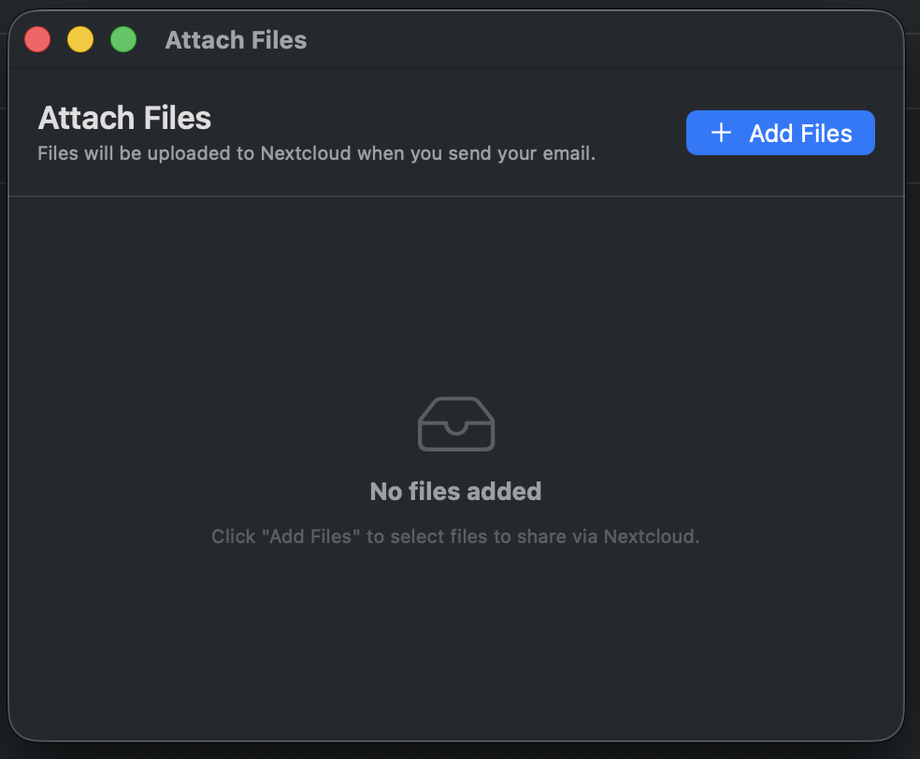
- Close the window. Your files are saved for this email.
- Write your message and click Send.

What happens when you send
- Your email is sent straight away, without the files.
- The app uploads the files to a new folder in your Nextcloud: MacMail/<subject>.
- The folder is shared with every recipient in To, Cc and Bcc:
- Recipients with an account on your Nextcloud get a direct share.
- Other recipients get an email from Nextcloud with a link to the folder.
The link is not added to your own email: recipients receive it in a separate email from Nextcloud. Mention in your message that you shared files through Nextcloud, so recipients know to expect it.
If your organization requires passwords on shared links, a password is created automatically and Nextcloud sends it to the recipient. Expiration dates follow your Nextcloud server's settings.
Keep the app running until the upload is finished. If you quit the app before you send the email, the files you added are lost and you need to add them again.
You can follow the upload in the menu bar. See How to Track Uploads and Troubleshoot Nextcloud for Apple Mail.