

How to Connect Nextcloud for Thunderbird to Nextcloud
Before you can share files, connect the add-on to your Nextcloud account.
Open the settings page
The settings page opens automatically after installation, and every time Thunderbird starts while you are not connected. You then also see the notification "Please log in to Sendent to use file sharing features."
You can also open it yourself:
- In a new email, click the Nextcloud button and then Settings, or
- Open Tools > Add-ons and Themes, click Nextcloud for Thunderbird and open its settings.
Log in
- Under Nextcloud Server URL, enter the address of your Nextcloud server, for example
https://cloud.example.com. - Click Login with Nextcloud.
- Thunderbird asks for permission to contact your Nextcloud server. Click Allow.
- Your web browser opens the Nextcloud login page. Log in and grant access.
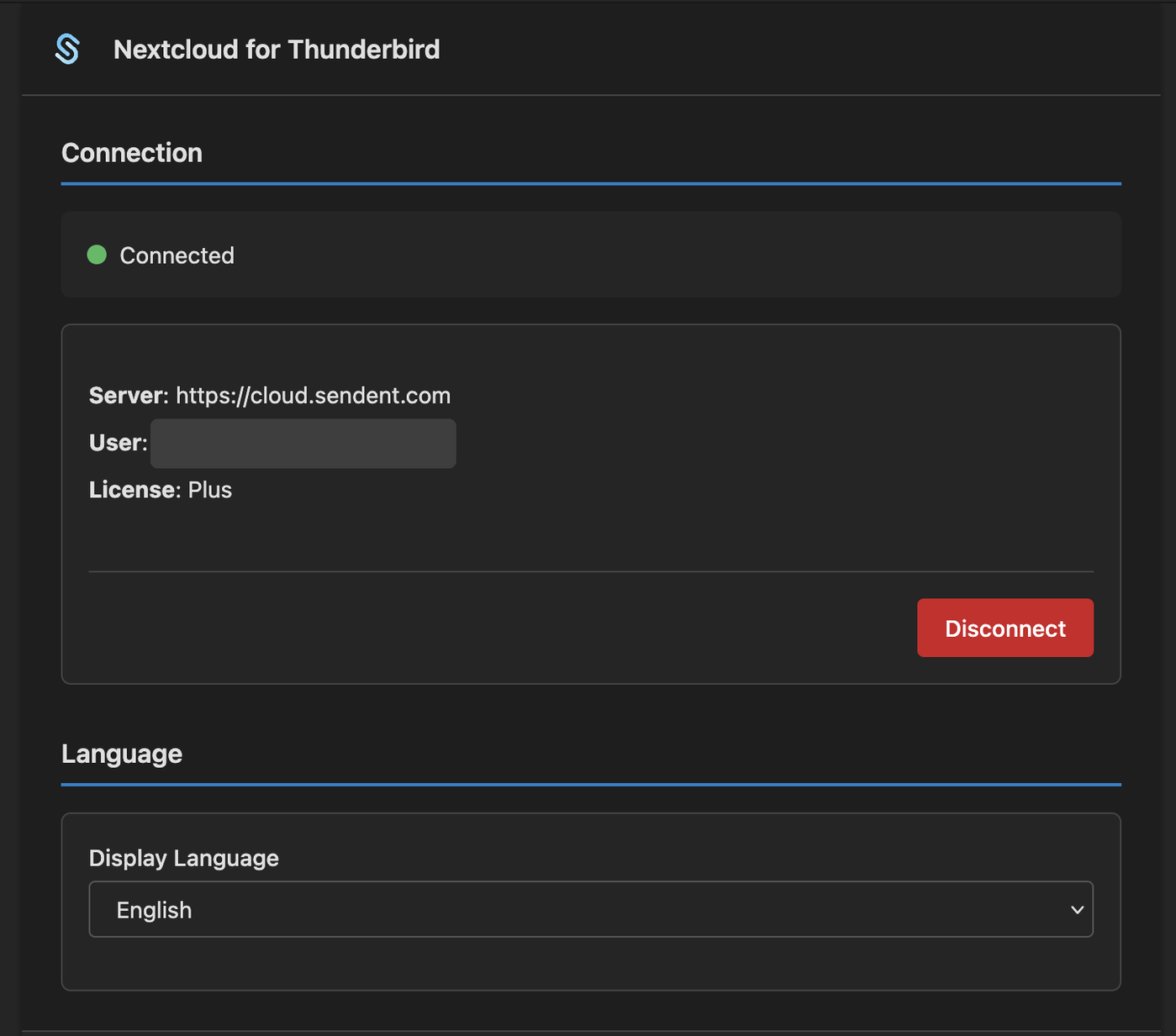
- Return to Thunderbird. The settings page now shows Connected, with your server, user name and license.
If you click Deny in step 3, the add-on cannot reach your server. Click Login with Nextcloud again and choose Allow.
Change the display language
Under Language, choose a Display Language: English, German, French or Dutch. The default, Auto-detect, follows Thunderbird's language.
Disconnect
Click Disconnect on the settings page. To connect to a different server, disconnect first and then log in again.