

How to Share Files from Thunderbird
With Share Files you upload files to your Nextcloud and add a download link to your email, instead of attaching the files. There is no size limit from your mailbox, and the files stay on your own server.
- Create a new email and enter the recipients and a subject.
- Click the Nextcloud button at the top right of the compose window, then click Share Files.
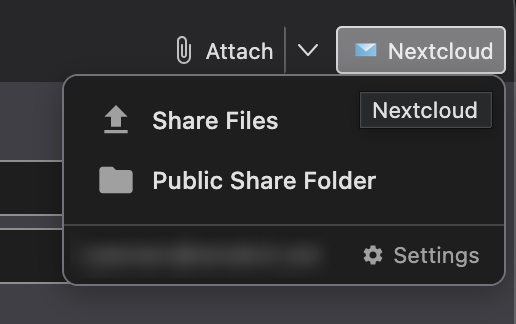
- In the Share Files window, click Add Files and choose:
- Local Files to upload files from your computer, or
- Nextcloud Files to share files that are already in your Nextcloud. You can select a folder or multiple files.
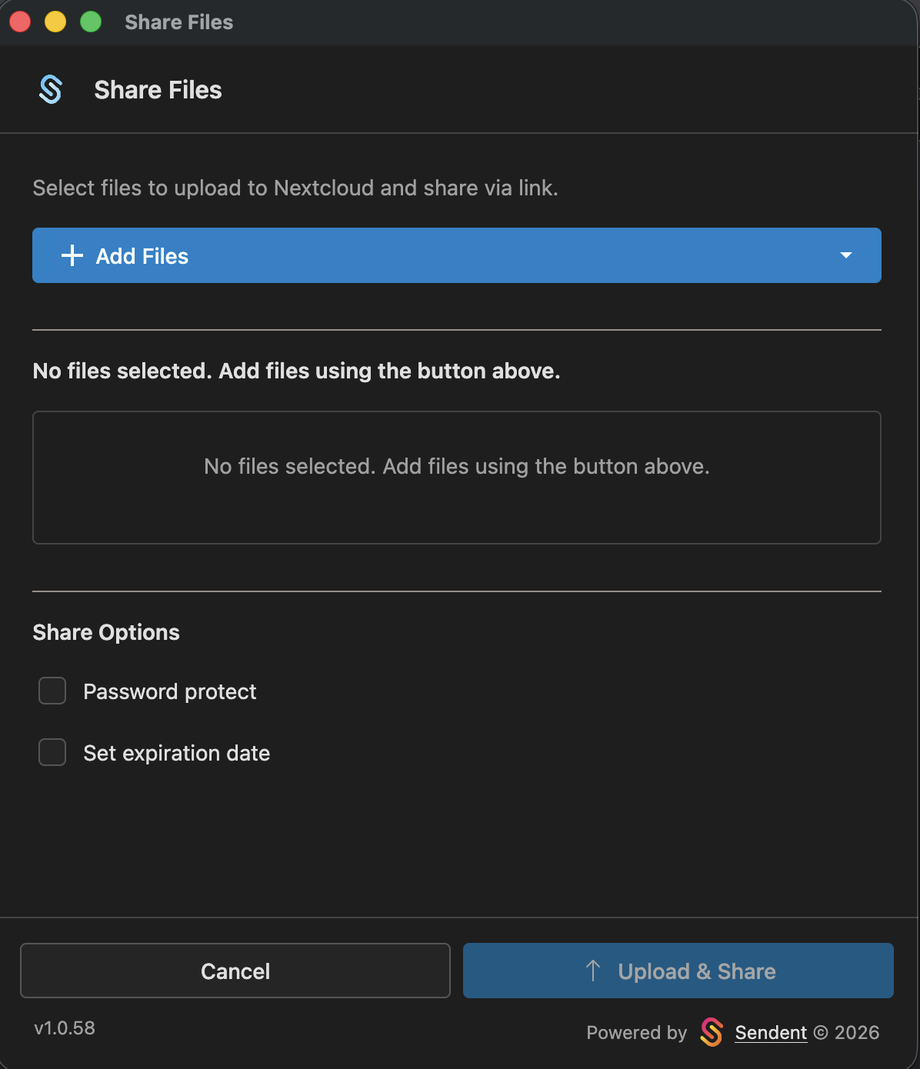
- Under Share Options, optionally:
- Tick Password protect and type a password, or click Generate password.
- Tick Set expiration date and choose the date in Expires on.
- Click Upload & Share.
- When the upload is finished, a block with the download link is added to your email. If you set a password or expiration date, these are included too.
- Click Send.
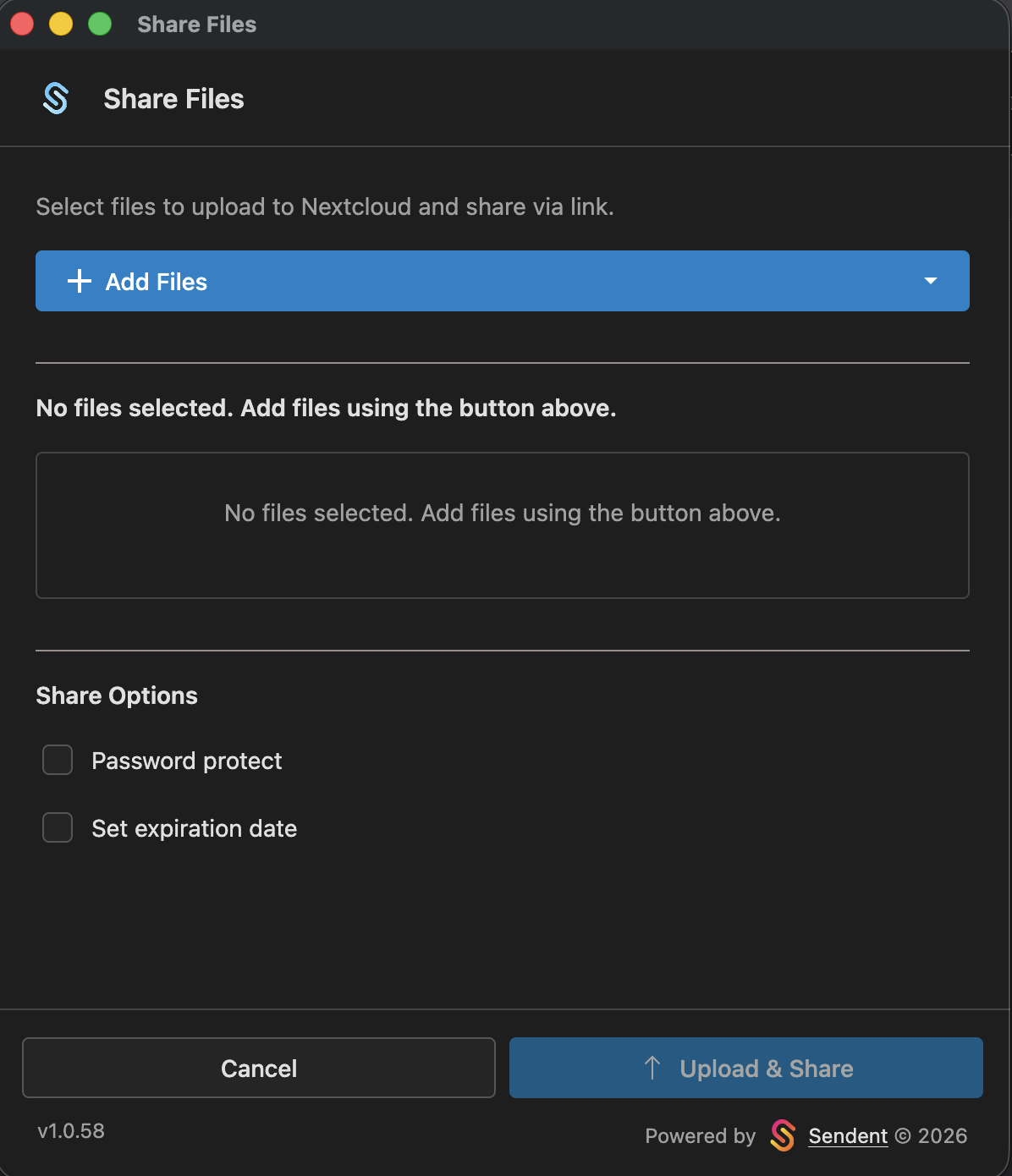
Your administrator can require a password or an expiration date. In that case the option is already ticked and you see "Password is required by server policy" or "Expiration is required by server policy".
Files from your computer are uploaded to the Thunderbird/Uploads folder in your Nextcloud.
If your license includes secure sharing, the window also shows Share with recipients directly (recommended). See How to Use Secure Mail in Thunderbird.