

How to Download Nextcloud for Outlook (Windows)
Nextcloud for Outlook (Windows Only) is the add-in for classic Outlook on Windows. You do not need a separate download link or an email to get it. Once the Sendent App for Nextcloud is installed and your license is activated, the installer is available directly from the Sendent settings page in your own Nextcloud instance. The download always matches your license, so you get the latest version available for your plan.
Prerequisites
- The Sendent App for Nextcloud is installed and up to date. See Installing the Sendent App for Nextcloud.
- Your license is activated in the Sendent app. See How to Configure your License Information on the Sendent Server App. Sendent Free users can register to receive their license key.
- A Nextcloud administrator account.
- Classic Outlook 2016, 2019 or 2021 on Windows. The new Outlook for Windows is not supported. See How to Disable the new Outlook for Windows.
Step 1: Check your Outlook architecture
The add-in comes in a 32-bit and a 64-bit version. Most Windows installations are 64-bit, but Microsoft Office can still be 32-bit.
1. In Outlook, go to File > Office Account > About Outlook.

2. The first line of the About window shows whether Outlook is 32-bit or 64-bit.

For a scripted check across multiple machines, see Using Powershell to Determine Your Office Version.
Step 2: Check your license status
1. Log in to Nextcloud with an administrator account.
2. Click your avatar in the top-right corner and choose Administration settings.
3. In the sidebar, click Sendent.
4. Open the Group Settings tab and scroll to License Information.
5. Confirm that the license status is active and shows an expiration date.
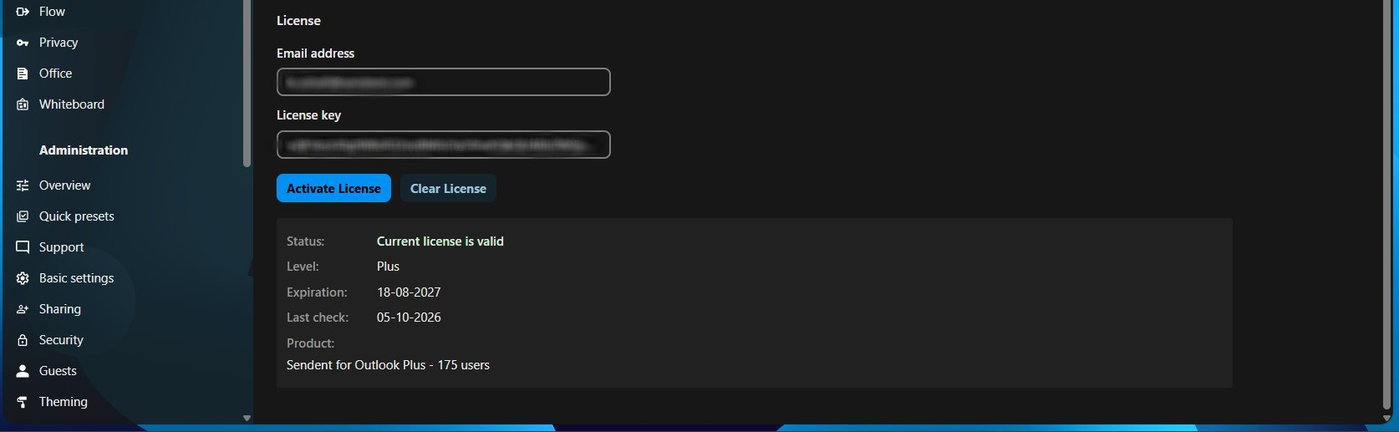
If the license is not active, activate it first using the license guide linked under Prerequisites. The download is only available for an activated license.
Step 3: Download the installer
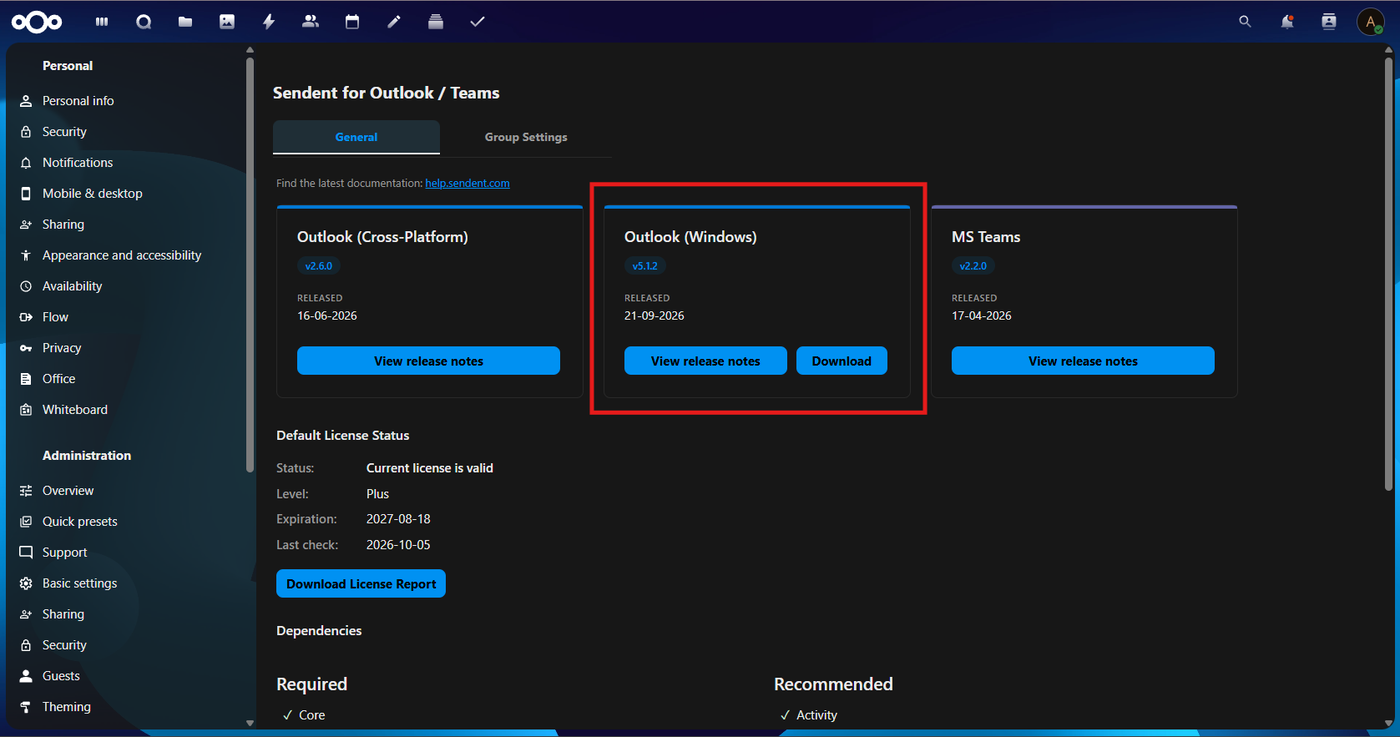
1. Switch to the General tab.
2. Click Download next to Nextcloud for Outlook (Windows).
3. Choose the 32-bit or 64-bit version that matches your Outlook.
4. Save the installer. You can hand it to your users or distribute it centrally.
Step 4: Install the add-in
Follow How to Install Nextcloud for Outlook (Windows). For an organisation-wide rollout, see Silent Installation.
Keeping the add-in up to date
Subscribers receive an email whenever a new version is released. To update, repeat Step 3 and install the new version over the existing one.
You can check the installed version in two places:
- Windows: Control Panel > Programs and Features.
- Outlook: the Sendent settings dialog on the Sendent ribbon.
Troubleshooting
- The Download link is missing or opens this page instead of downloading. Update the Sendent App for Nextcloud from the Nextcloud Apps page. Older versions of the app redirect to this article instead of serving the installer directly.
- The license shows as inactive. Re-enter the license email address and key under Group Settings > License Information and click Activate License. Then return to the General tab.
- Activation or download fails on a restricted network. Your Nextcloud server must be able to reach the Sendent license server. See the restrictive firewall configuration article.